No. The picture you upload as the thumbnail on step two is not a separate file from your journal's cover on step one. Both uploads write to the same image field on your journal, so replacing one replaces the other. What looks like two pictures is one picture shown in two different crops.
One upload, one field
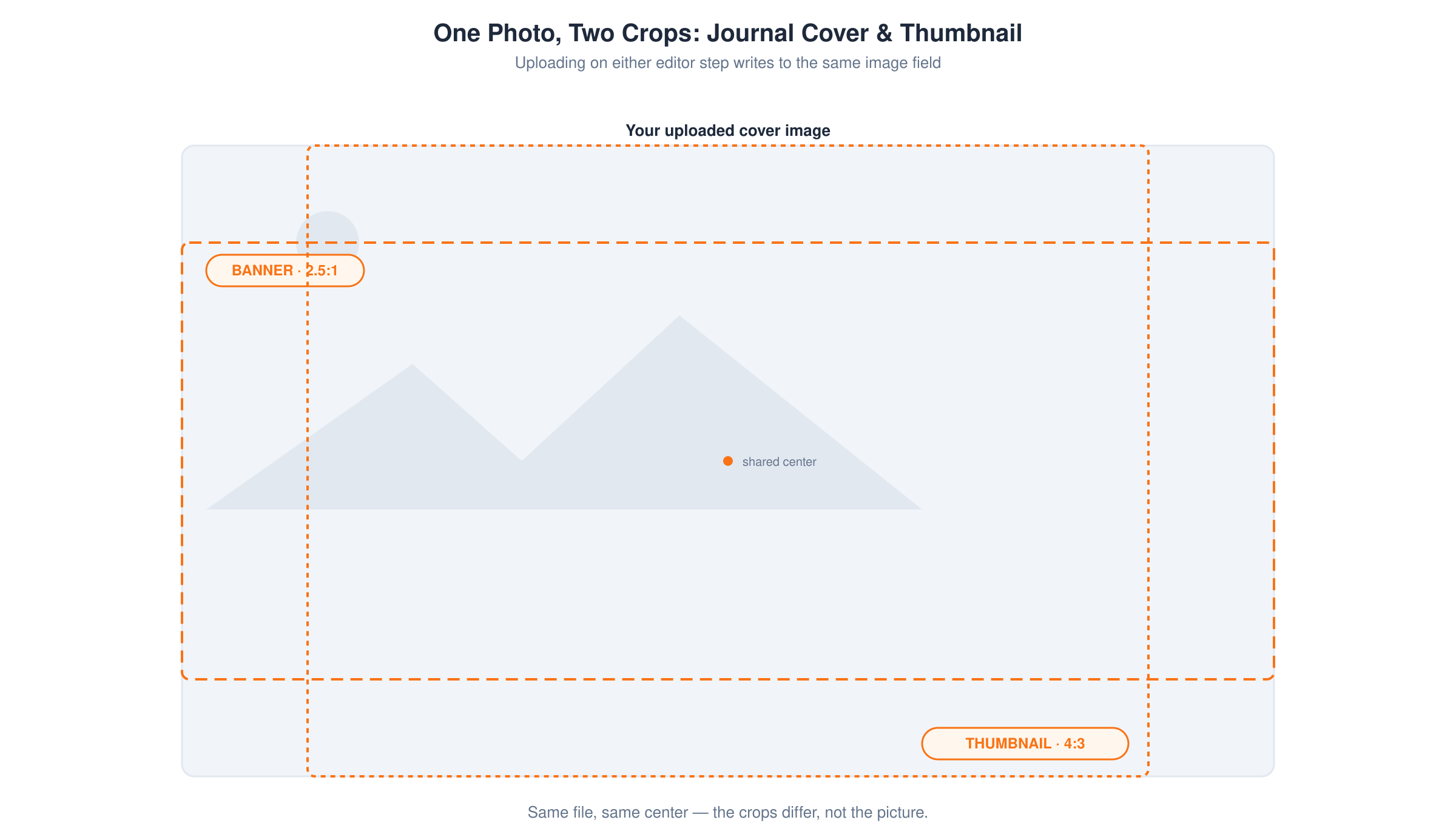
Step one of the editor shows a wide banner at the top of the page. Step two, under Thumbnail & Preview, shows a smaller image next to your title and tagline. Both controls send the file you choose to the same upload endpoint, and the server writes it to the same field on your journal. There is no separate thumbnail file anywhere in the system. Upload a picture in either place and it becomes your journal's one and only cover image.
The crops are what differ, not the pictures
The banner on step one is cropped to a wide 2.5:1 rectangle. The thumbnail on step two is cropped to a squarer 4:3 rectangle, the same shape your journal's card uses everywhere it is listed: feeds, search results, your profile. Both crops are cut from the single picture you uploaded, centered automatically rather than framed by you. There is no control anywhere in the editor for framing the two crops separately, and no way to have a different picture behind each one.
Because of that, an image with its subject centered usually survives both crops fine. An image with an important detail pushed toward one edge can lose that detail in whichever crop is narrower for that direction, the wide banner or the squarer card, depending on where the detail sits.
Upload wherever is convenient
Since the two controls write the same field, it does not matter which one you use, or whether you switch between the two editor steps. Uploading on step two while you still have step one open updates the banner step one is showing too, and the reverse is also true. If you upload more than once in the same session, whichever upload finishes last is the picture that stays. There is no way to end up with two different pictures in the two places.
If your journal is already published, a cover upload from either control goes live for readers the moment it finishes. It does not wait for you to press Publish again. Why a journal cover changes for readers immediately covers what that means for keeping a copy of the picture you are replacing.
For size and format limits on the file itself, see Journal cover image rules.