The X inside the search box on Projects search does more than empty the box. It clears your keyword, clears every filter you had applied, and sends you back to the Projects feed. It is a reset of the page rather than a way to change your search terms.
The same thing happens if you select Clear search in the results header. Both controls run the same reset.
Three controls, three different results
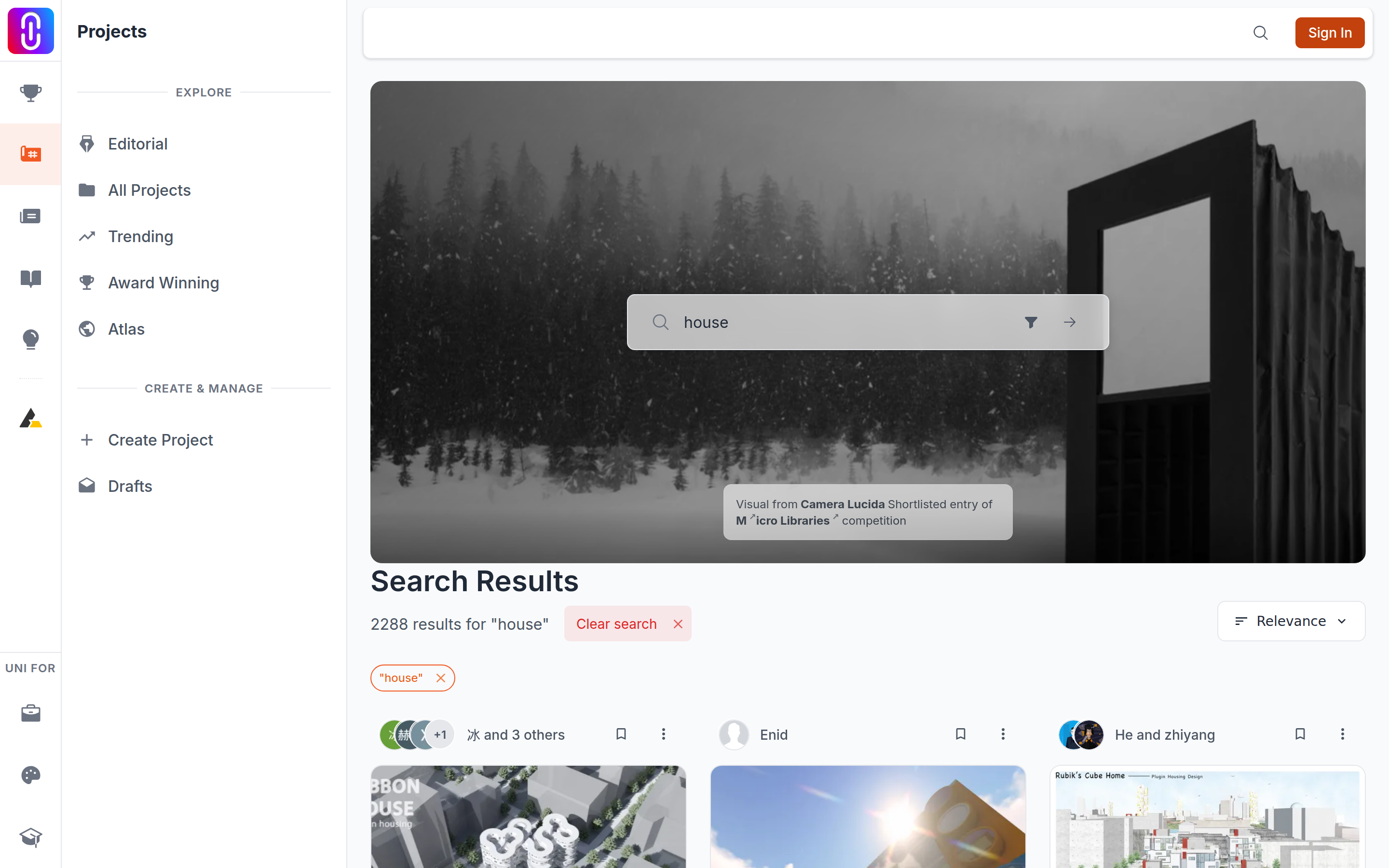
- The X in the search box, or Clear search. Keyword gone, filters gone, and you land on the Projects feed.
- The X on the keyword chip. Your search words sit below the box as a chip in quotation marks. Removing that chip drops the keyword and keeps every filter, and you stay on the search page. This is the control to use when you want the filters and not the words.
- Clear all. The red chip at the end of the row removes the filters but leaves your keyword in place, despite the name. It only appears once you have more than one chip on screen.
Removing a single filter chip works the way you would expect: that one filter goes and the rest of the search stays.
Your browser Back button undoes a reset
Clearing is a navigation, so Back returns you to the search you just cleared, with the words and the filters as they were. That is the fastest recovery, and it is the only one, because nothing on the page remembers a cleared search.
Copy the address to keep a search
Every part of a search lives in the page address: the keyword and each filter. So a search you want again is worth bookmarking or copying while it is in front of you. Opening that address later rebuilds the same search, and it works for someone else you send it to.