Certificates are generated on demand. You create the certificate yourself once your competition reaches the right stage, and it then lives on a permanent page you can download, share or verify. Once generated, the entry owner and every accepted team member are emailed that it is ready, so a teammate does not have to check manually.
Before you start
Two things have to be true.
1. Your entry was not rejected, and your competition has finished the relevant stage. A rejected entry never earns a certificate - that is a fixed rule, not a stage it can still reach. For every other entry, availability follows the stage, not a date:
- If your entry was approved, it unlocks once shortlisting completes.
- In every other case, including entries still unreviewed, it unlocks once evaluation completes.
2. The work attached to your entry is published. For a project entry the certificate is built from the published version of that project. If the project was unpublished or deleted, publish it again first.
Only the entry owner, accepted project team members and the UNI team can generate or open a certificate for an entry.
Generate your certificate
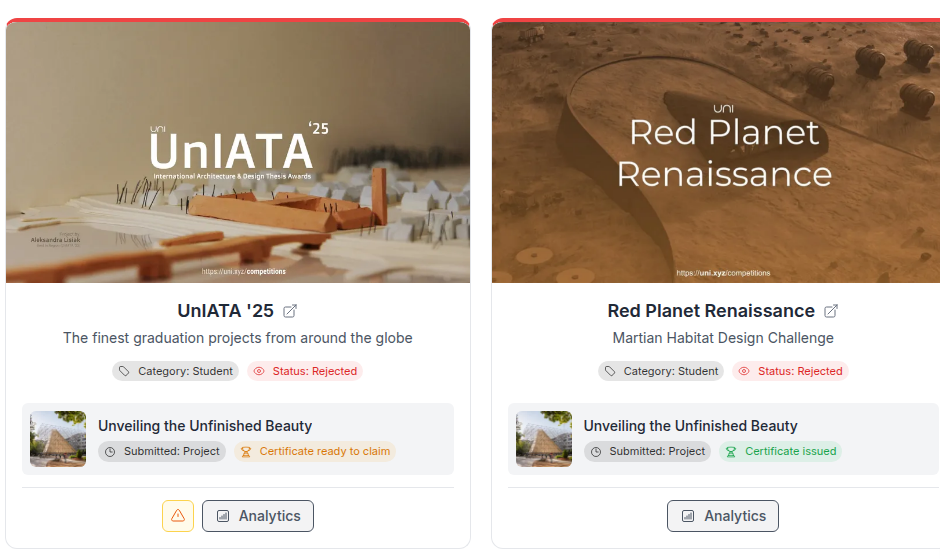
- Sign in, then open My Competitions from the account menu in the navbar. It takes you to
uni.xyz/profile/edit/{your-username}/competitions. - Find the entry card for the competition you took part in.
- Click Analytics on that card. Your entry dashboard opens in a new tab.
 4. Click Download Certificate. This opens the certificate form rather than saving a file straight away.
5. Fill in Participant Name. Separate names with commas and include every team member who worked on the entry. The field is prefilled from your project team, so read it rather than assume it is right. It holds up to 120 characters, so abbreviate long names, for example "A. Matthew, B. Johnson". Use title case.
6. Click Generate Certificate. Your certificate page opens at
4. Click Download Certificate. This opens the certificate form rather than saving a file straight away.
5. Fill in Participant Name. Separate names with commas and include every team member who worked on the entry. The field is prefilled from your project team, so read it rather than assume it is right. It holds up to 120 characters, so abbreviate long names, for example "A. Matthew, B. Johnson". Use title case.
6. Click Generate Certificate. Your certificate page opens at uni.xyz/profile/certificate/{slug}.
If the Analytics button is not on the card, the submission deadline has not passed yet or nothing is attached to the entry. If Analytics opens but there is no certificate button, the competition has not reached the stage described above. There is nothing to fix on your side in either case.
Download the file
On your certificate page use Download PDF or Download PNG. The file is produced in your browser from that page, so let the page finish loading before you press either button.
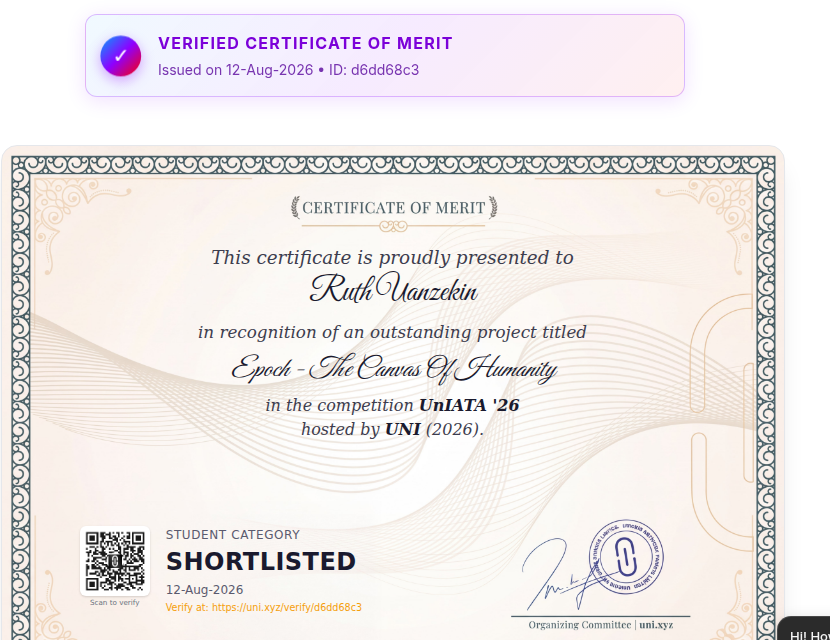
The page is permanent. The same link keeps working, so bookmark it or reach it again through your entry.
Correcting a name
A certificate is issued once and cannot be reissued, so the competition, award and issue date on it are fixed.
The participant name and the project title can still be corrected. Open the same form again from your entry dashboard and use Update Certificate.
Verifying a certificate
Every certificate carries a short verification link and a QR code labelled Scan to verify. Following either one opens your public certificate page, which is how a university, an employer or anyone else confirms the certificate is genuine. The page also has an embed view for portfolios.
If you still cannot get it
See Certificate download troubleshooting for the full list of causes, or Winner and participation certificates for how the two certificate types are decided.