Open the competition page, click Register, then attach your finished work to that entry from your profile before the submission deadline.
Step 1: Register
- Open the competition page.
- Click Register. On smaller screens the same button reads Register Now. It only appears while the registration window is open.
- Pay the entry fee if the competition charges one. Free competitions skip this step, and entering a free competition does not use up your membership entries.
Registering creates an empty entry. Nothing has been submitted yet.
Step 2: Prepare and publish your work
Each competition accepts one kind of entry, and the competition decides which:
- Project for most competitions.
- Publication for portfolio and thesis awards such as UPA and UnIADA. Publications are uploaded as PDF files.
- Journal for writing competitions.
Read the brief on the competition page for what your submission should contain, then create the work and publish it. Drafts do not appear in the list when you go to attach it.
Step 3: Attach the work to your entry
- Click Submit Entry on the competition page, or open the Competitions page on your profile directly.
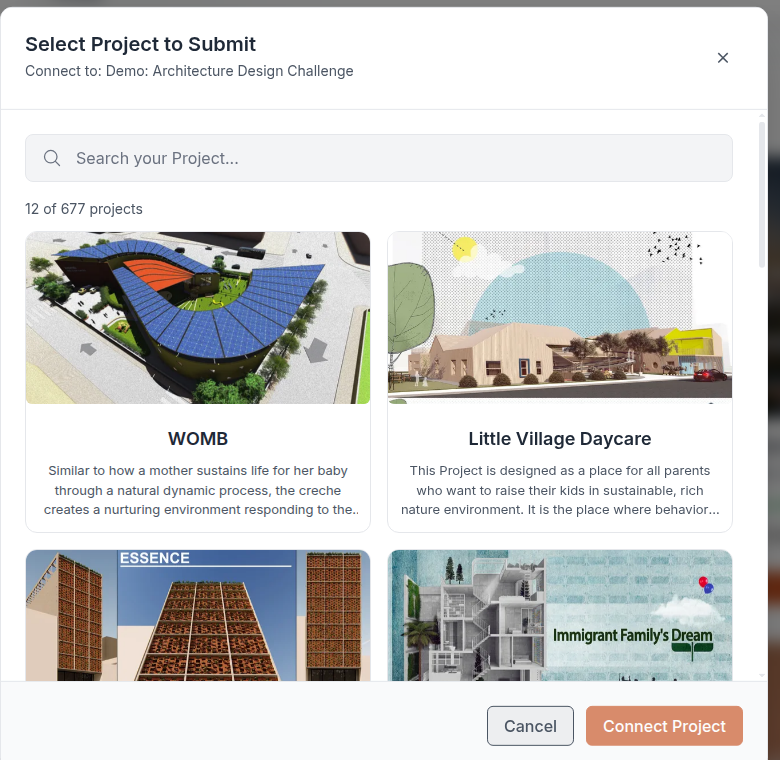 2. Find the entry for that competition and click Submit.
3. Choose your work from the list, then click Connect.
2. Find the entry for that competition and click Submit.
3. Choose your work from the list, then click Connect.
The picker only offers the type of work that competition accepts, so you cannot attach the wrong kind of entry.
Deadlines
Deadlines are shown in UTC and labelled that way on the competition schedule. They are not converted to your local time, so work out the difference before the last day.
Until the submission deadline passes you can change what you submitted. Click Detach work on the entry to disconnect what you attached, then attach something else. Once the deadline passes, the Submit and Detach work buttons are removed from the entry.
If the Submit button is missing
The most common reason is that the submission deadline has already passed. The button is removed once submissions close, and publishing a project or portfolio afterwards will not bring it back.
Check the deadline on the competition schedule. If it has passed, submissions are closed. If the deadline is still open and the button is genuinely missing, contact the UNI team.
How many entries your membership includes
| Membership | Included entries |
|---|---|
| Institutional | 12 |
| Studio | 5 |
| Annual | 2 |
| Semester | 1 |
| Monthly and Weekly | none |
The count runs from the start of your current membership period, so it resets when you renew. Entering a free competition does not use one of these entries.
See UNI Membership for what each plan includes.