An organization is a page for a studio, university, firm, professional body or media outlet. It has its own profile, its own members with roles, and its own projects, competitions and courses. Anyone signed in can create one, and whoever creates it becomes the owner.
Create the organization
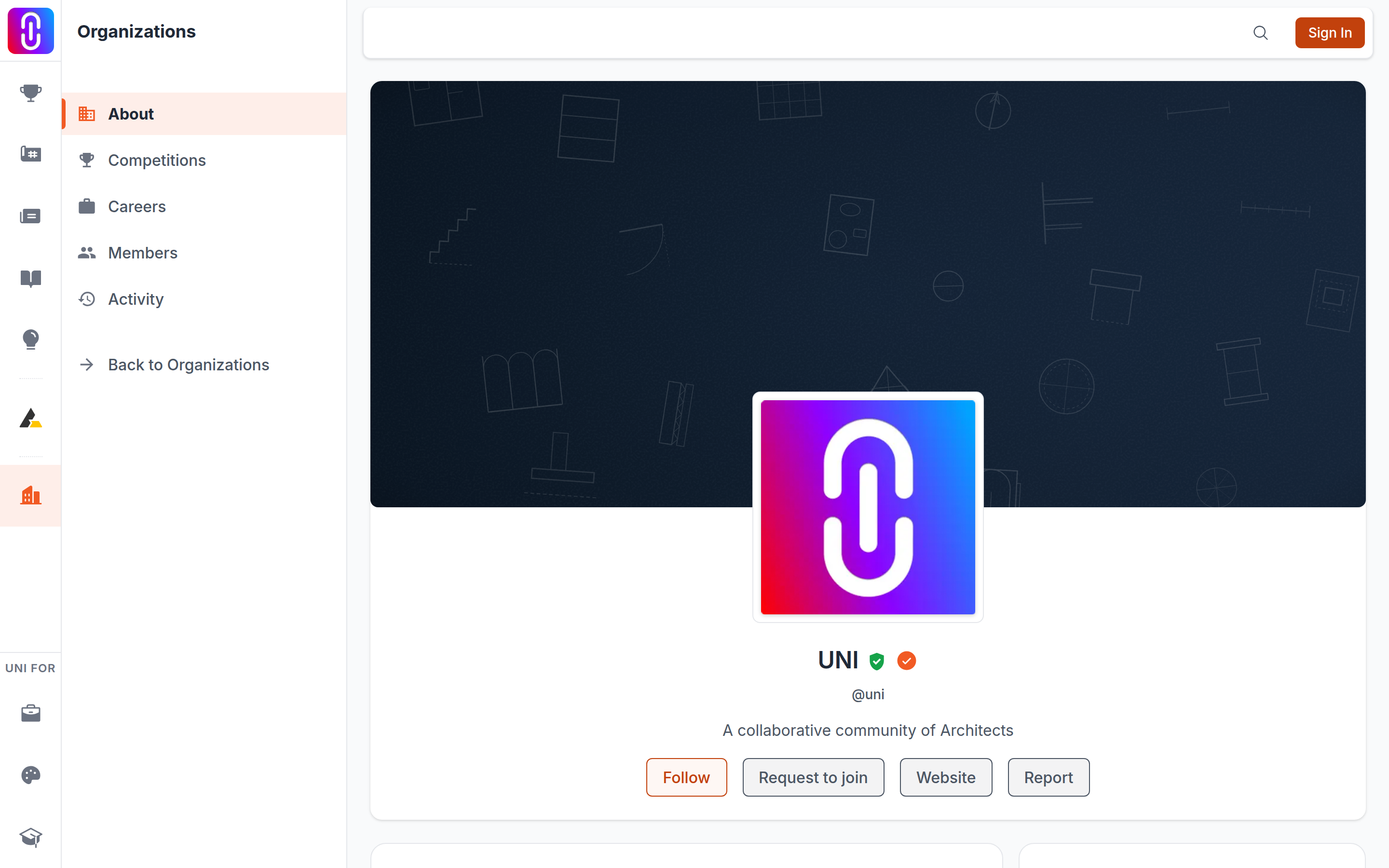
- Go to uni.xyz/organizations.
- In the left sidebar, under Actions, choose Create Organization.
- Fill in Organization Name. It is the only required field. Tagline and About can wait.
- Press Create Organization.
You land straight on the organization's management dashboard at uni.xyz/organizations/manage/its-slug, and you are its Owner. You can return to it later from Manage Organizations in the same sidebar.
Fill in the page
On the management dashboard, the card at the top carries the logo, the cover image and two buttons.
Edit Info opens a form with:
- Organization Name, up to 200 characters.
- Tagline, up to 300 characters.
- About, up to 2000 characters.
- Website.
- Email.
- Contact Number.
- Foundation Date.
Press Save Changes. View Public Page shows you the result as a visitor sees it.
The logo and the cover are uploaded on the card itself. Keep the logo under 5 MB and the cover under 15 MB, in JPG, PNG, WebP or GIF. The logo is shown as a square, the cover as a wide strip.
One thing to plan around: the logo and cover can only be changed by the account recorded as the organization's creator. Transfer Ownership moves that ability along with everything else, so after a handover the new owner can replace the logo and cover and the previous owner no longer can. Administrators can edit everything else.
Set the organization type
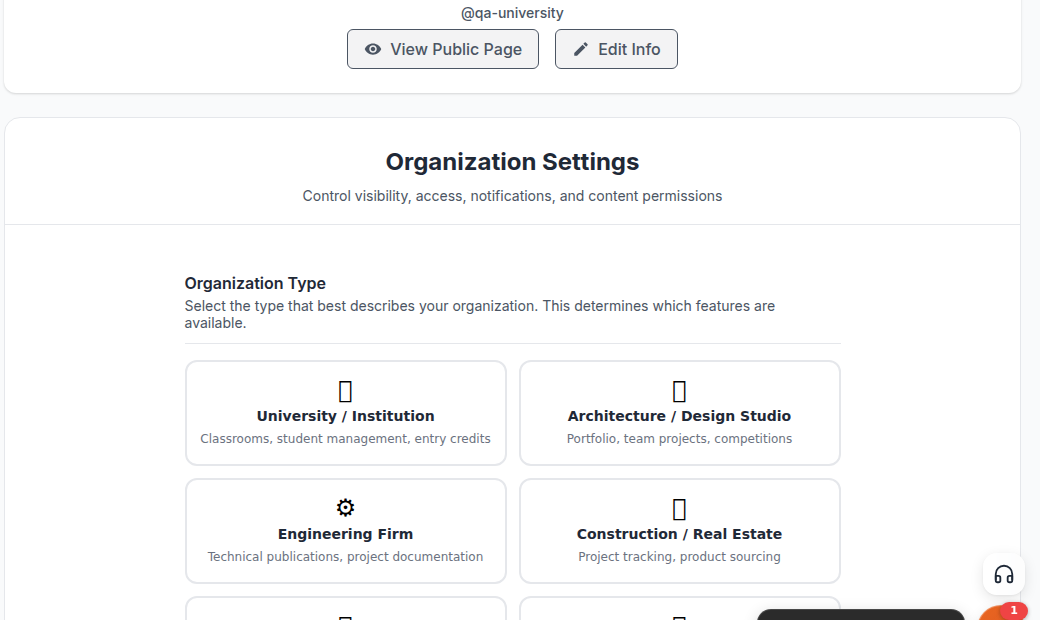
Open Settings in the sidebar and pick an Organization Type:
- University / Institution
- Architecture / Design Studio
- Engineering Firm
- Construction / Real Estate
- Building Materials / Products
- Technology Company
- Professional Body / NGO / Media
The type decides which sections your management sidebar offers. Products, Services and Careers appear for the commercial types, and the Institutional tools, including classrooms and entry review, appear only for University / Institution. Set it before you start filling in content so you are not looking for a section that your type does not have.
The rest of the Settings page covers visibility (public profile, showing members, showing the activity feed), email domain and auto enrolment, notifications for owners and admins, and whether members can publish projects or create journals under the organization.
Invite members and choose roles
- Open Members in the sidebar.
- Press + Invite.
- Search by name or email, choose a Role, and send. You can send up to 50 invitations at a time.
Invited people appear under Pending Invitations with an Invited chip until they accept, and you can Revoke an invitation before then.
There are four roles:
- Owner has full control. There is exactly one per organization and they cannot be removed.
- Administrator has everything except deleting the organization or removing the owner.
- Curator manages competitions and content: adding, editing and deleting competitions, reviewing entries, viewing analytics.
- Member has view access and no management rights.
Owners and administrators can change roles from the three dot menu on a member row, mark someone as alumni, or remove them. You can only remove someone whose role is below yours. The full breakdown is on the Permissions page in the sidebar.
To hand the organization over, use Transfer Ownership on the new owner's row. You become an Administrator, and it cannot be undone without their cooperation.
What visitors see
The public page is uni.xyz/organizations/its-slug. Its sections are About, Projects, Competitions, Courses, Members and Activity. Competitions and Courses only appear once the organization has some.
A project appears here when the project's team includes your organization. There are two ways that happens: the project owner adds the organization from the project's own Team page (see How to invite team members to your project on UNI), or a member starts the project directly from the organization's own Journals, Projects or Publications tab in the management sidebar, each of which has a Create button and a Drafts section for content started this way. Either path requires the member to belong to the organization.
Verification
A new organization starts unverified. Verification is applied by UNI rather than requested from a form, and you are notified when it is granted. If your organization needs it, contact the UNI team from the help centre with the organization's page address and what it is for.
Leaving or closing it
Both live at the bottom of the Settings page.
Leave organization removes your role and its permissions. The organization and its work are untouched, and you need a new invitation to come back. If you are the only owner you cannot leave, because that would strand the organization with nobody able to run it. Transfer ownership first, or archive it.
Archive organization is owner only. It closes the organization and takes it out of search and listings without erasing it, and it can be restored later. An organization with a live competition cannot be archived until that competition is closed or concluded.
There is no self-serve delete. See How to delete an organization you own, and what happens to it.