Restoring an earlier version rebuilds your draft from that version. It does not touch the live page. Until you publish again, visitors keep seeing exactly what they saw before, and the version marked Live in your history stays live.
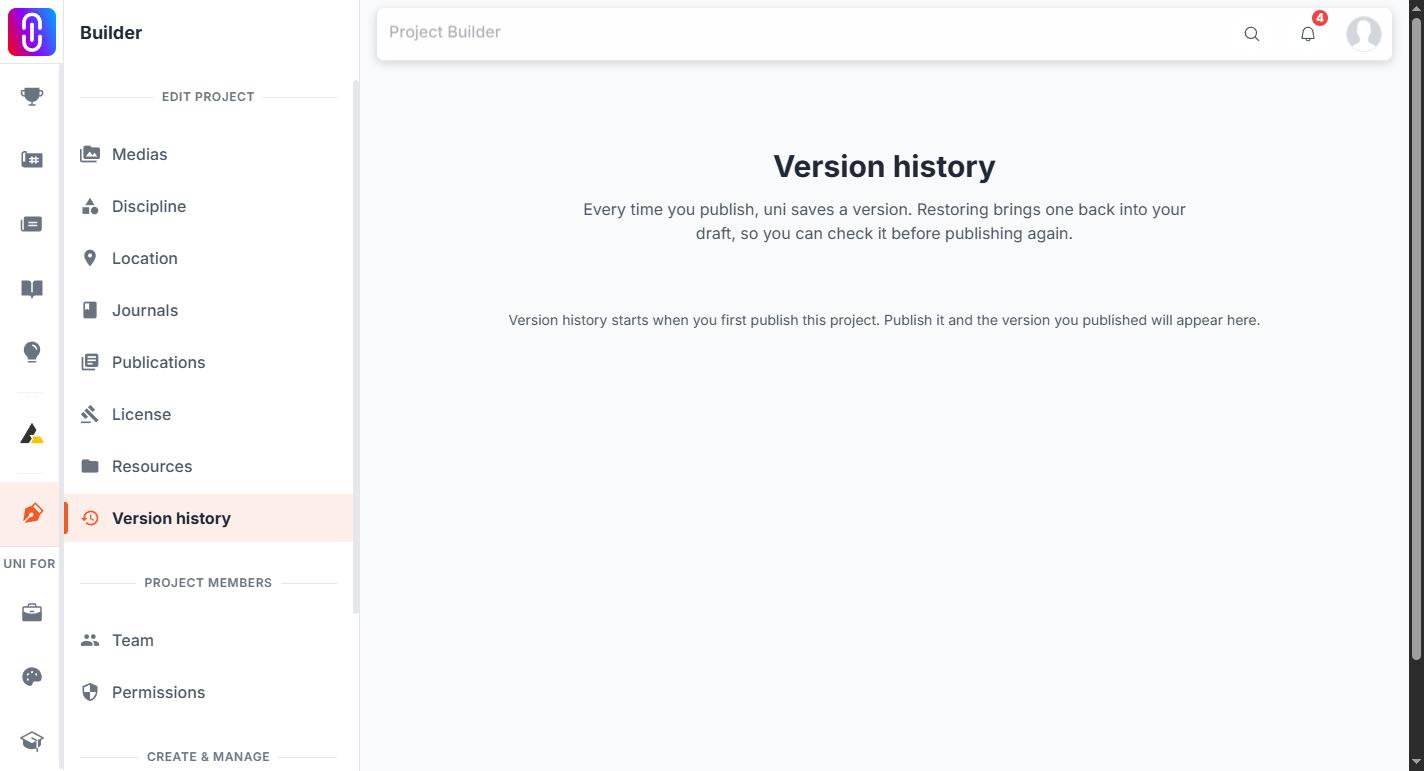
Version history sits in the project editor: open the project to edit it and select Version history in the left sidebar.
A restore replaces, it does not merge
Four things in your draft are overwritten in one go:
- The whole media list. Every image, video, PDF and embed in the version you picked becomes your draft's media list, in that version's order. Anything you added since that the version did not have is dropped from the draft. The files themselves are not deleted.
- Images and embeds you removed since. If the version used media you have deleted, restoring brings it back. That is what the feature exists for.
- The title and the description, as they read in that version.
- The project location. If that version had no location set, your draft ends with none.
Disciplines, tags, licence, your team, linked journals and publications, comments, likes and views are not part of a version, and a restore leaves all of them alone.
Unpublished draft work is overwritten and cannot be brought back
A version is recorded when you publish, and when you save one by hand. Draft edits are never recorded anywhere. So if you have edited since your last publish and have not published those edits, a restore writes over them and there is nothing to recover them from.
If the work in your draft matters, publish it first. Publishing records it as a version, and you can then restore either one.
Nothing you have already published can be lost
The live version stays live, and it stays in your history. So the worst a restore can cost you is unpublished draft work, never the page the public sees.
There is no undo button for a restore. If you change your mind after restoring, the way out is to not publish: the live page never changed, and the version marked Live is still exactly what visitors are reading. What the panel will not do is hand you back the draft you had a minute ago.
Restoring a version
- Open the project in the editor and select Version history.
- Find the version you want and select View. It shows that version's title and the media it holds, so you can check it before committing.
- Select Restore. Before you confirm, uni tells you how many items the restore will add and how many it will remove.
- Look over the project, then Publish it to make the restored state public.
The version marked Live has no Restore button, because it is already what your project is showing.
How far back your history goes
Every version you have ever published is listed, including publishes from long before the version panel existed. Versions are never aged out or pruned, so the list only grows.
History starts at your first publish. A project you have never published has no versions, and a draft is not a version. You can also record one deliberately with Save current version and a label such as "before jury submission". That saves the state that is currently live, not what is sitting in your draft.
Clearing the location is the one change that goes public immediately
Most edits are held in your draft until you publish. Clearing the project location is not: it is written straight to the newest version of the project. If you have not made any other edit since your last publish, there is no draft yet, so that change lands on the live page immediately.
If you want those changes held back, make some other edit first, which starts a draft, and publish when you are ready.