With a project open, an image you drop into the chat is uploaded into that project. It does not stay in the message. The rule is short: the project decides where an image goes. If you only want the assistant to look at a picture, open a plain chat at uni.xyz/unify/ with no project selected and attach it there.
How to tell which one is happening
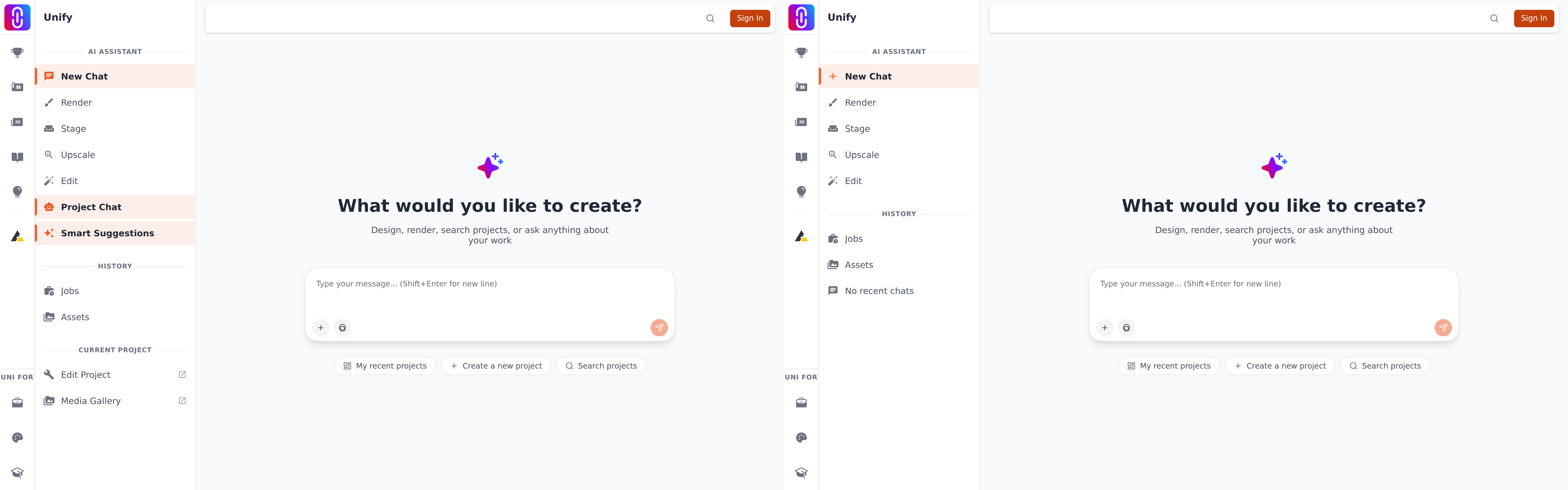
You are in a project chat when the address is uni.xyz/unify/project/ followed by an identifier, and the project's name is showing in the chat. Drop images there and the upload starts straight away: a message is posted in your name saying you want to add the images to the project, a progress bar runs, and a confirmation reports how many uploaded.
In a plain chat nothing is uploaded anywhere. The images are held against the message you are about to send, a short notice says how many are attached, and you can take one back off before sending. That is the path to use for a reference photo, a sketch you want commented on, or a screenshot of a problem.
The upload does not publish anything
The file joins the project's media, which is the pool of images the project can draw on. It is not placed into the layout of any version of the project, so:
- It does not appear on the published project page.
- It does not become the cover image.
- Nobody sees it until you place it yourself.
To use it, open the project in the Builder, put it where you want it in the sequence, and publish. Reordering images in a project covers the placing, and how to create and publish a project covers the publishing.
Removing one you did not want
Open the project in the Builder and remove the image from the project's media. Removing it takes it out of the project without destroying the file or the history of earlier versions that used it.
Documents work the other way round
Files that are not images always go to the message as attachments, whether or not a project is open. They are never added to the project.
The assistant can read what is inside them. PDFs, Word documents, spreadsheets and PowerPoint files are opened and read as text, and for a ZIP you are told what the archive contains. It does that itself, without a card to allow: see when the assistant asks before acting.
There is a fault in that reading at the moment. Documents uploaded through the chat are stored privately, and the reader is not yet handed the address it needs, so it often comes back saying it could not read the file. It is our fault and not something you did wrong. Until it is fixed, paste the passage you want the assistant to work from into the message. See what you can attach to the assistant, and what it can actually read.
What this upload accepts
Each image can be up to 20MB, in JPG, PNG, GIF, WebP, BMP or TIFF. Anything larger, or in another format, is refused before it leaves your browser or reported as failed afterwards. Photos straight off an iPhone are often in HEIC, which this path does not accept: export or convert them to JPG first. Why does my upload keep failing covers the rest.