If the Publish or Next button stays grey, a required field is still empty. Below is exactly what each editor is waiting for, so you can check the list rather than guess.
Publications: the Next button on step one
Step one holds the PDF upload, the title, the description and the publication date. Next waits for one thing only: a title. Type one and the button activates.
The Publish button is not shown on step one at all, by design. If you are hunting for it there, it is on step two.
Publications: the Publish button on step two
Step two is headed Publishing Details. Publish activates once all of these exist:
- A title, from step one.
- The PDF, uploaded on step one. This one is different from the others: a missing PDF does not grey the button out and is not named in the "Please add" line. The button stays active and the publish is refused when you press it.
- A thumbnail.
- A publication type.
- At least one discipline.
The description is optional. So are the licence, the second discipline and the publication date. Do not go hunting for a description if the button is grey, it is not what is holding you up.
When Publish is grey, the page prints the missing items under the form, on a line beginning "Please add". Read that line first.
Journals
A journal needs more than a publication does. Publish waits for all six:
- A title.
- A tagline.
- Content in the body.
- A cover image.
- A story type.
- At least one discipline.
The tagline is the one people skip, because it looks optional sitting next to the title.
Projects
The project builder needs six things too, and it names the page each one lives on:
- Title, on the Medias page.
- Brief description, on the Medias page.
- Cover image, on the Medias page.
- At least one media item, on the Medias page.
- At least one discipline, on the Discipline page.
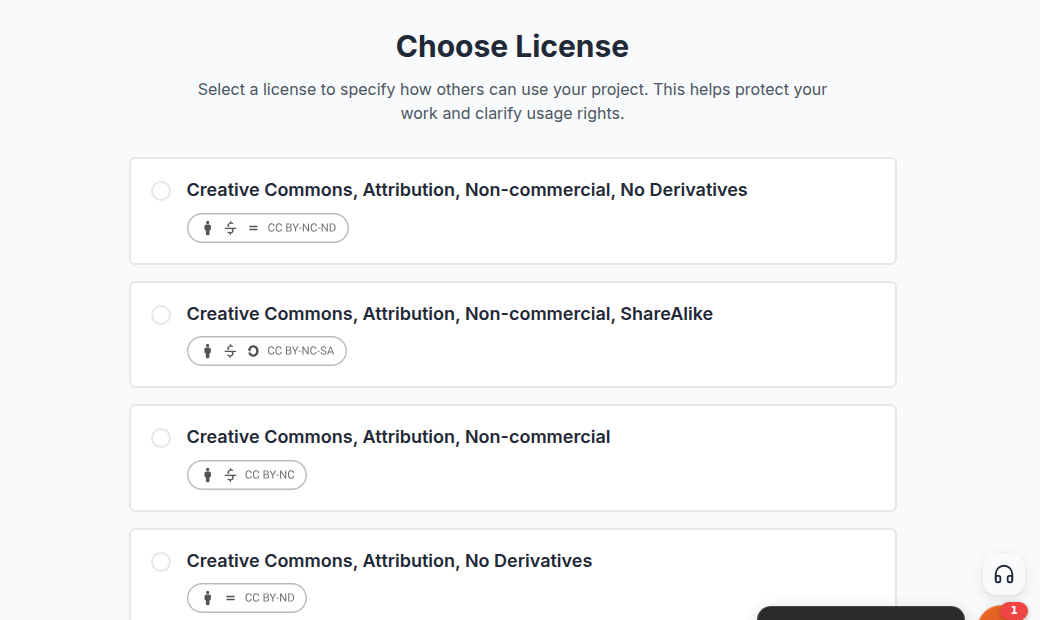
- A licence, on the License page.
A project that looks finished often fails on the licence, because that page sits further down the builder sidebar and is easy to walk past.
Check the upload really finished
In every editor, a file that is still uploading counts as no file. Look for the file name or the finished thumbnail, not for a progress bar that has stopped moving. If a PDF upload fails outright, check the file is under 50 MB.
If a competition Submit button is missing entirely
This is a different problem. If Submit is gone rather than grey, especially right after you published something, the submission deadline has most likely passed. The button is removed once submissions close, and publishing more work does not bring it back. Check the deadline on the competition page.
The other common cause is entering the wrong kind of work. Each competition accepts exactly one of projects, journals or publications, and the picker only offers that kind. See Projects vs publications: which one to use.
If the button is still stuck
If you have worked through the list for the thing you are actually making and the button is still dead while the deadline is open, stop repeating the same steps. Contact the UNI team and include:
- what you were creating: a project, a journal, a publication or a competition entry
- the step or page you were on
- what the on-screen message said, if there was one
- a screenshot, if you can take one