How do you download a competition brief as a PDF?
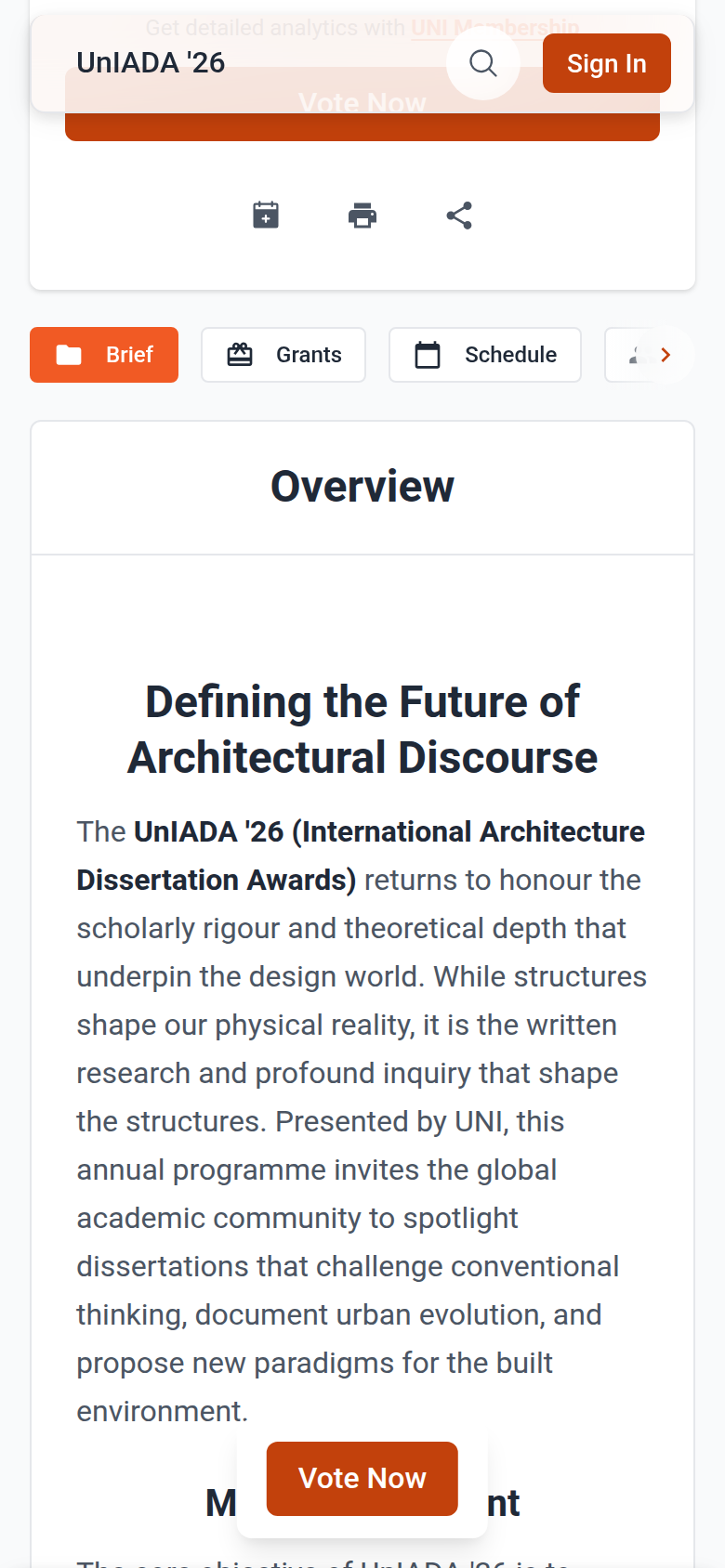
Use the printer icon on the competition page. It opens a print preview of the whole brief, and you save that as a PDF from your browser's print dialog.
There is no separate brief file to request. On UNI the brief is the competition page itself: the Brief, Grants, Schedule, Awards & Fees, Jurors and Partners sections together are the brief, and the print preview pulls all of them into one document.
Steps
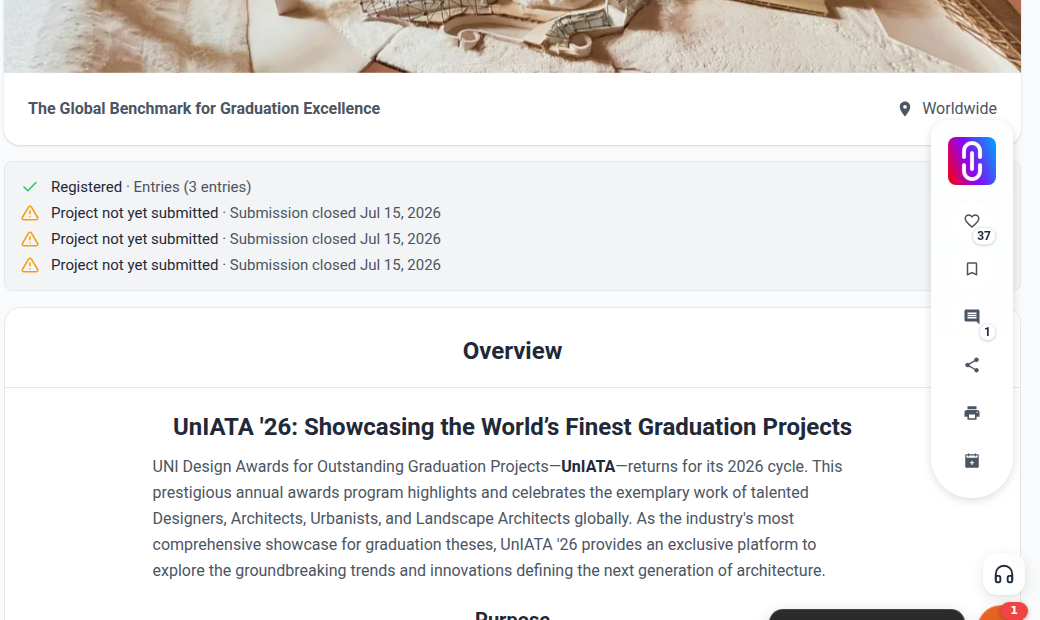
- Open the competition page, for example uni.xyz/competitions/uniata-26.
- Click the printer icon in the buttons over the cover image. It is labelled Print Brief. The same action sits under Print Brief in the competition's more menu.
- Wait for the print preview window to build. It gathers the cover, brief, schedule, awards, jury and partner sections.
- Click Print / Save PDF in the preview toolbar, then choose "Save as PDF" as the destination in your browser's print dialog.
Two things worth knowing:
- The preview suggests turning off "Headers and footers" in the print dialog for a cleaner document.
- The preview opens in a new window, so allow pop-ups for uni.xyz if nothing appears.
Additional resources are a separate thing
Some competitions publish extra material such as drawings, CAD files, 3D models or site data. When a competition has them, an Additional Resources link appears in its side menu.
That link is not open to everyone. The page states the rule directly: additional resources are available only for registered participants or UNI members, excluding weekly plans. If you are neither, the link stays disabled.
For more on that, see how to access additional resources.