The full screen control is the third of the three round buttons in the top right of the Atlas, after Share and the satellite and map toggle. It exists only once you have opened a body. The solar system view carries the Share button alone, which is why the control looks missing when you first arrive.
Open Earth, Mars or the Moon and the button appears.
It uses your browser's own full screen
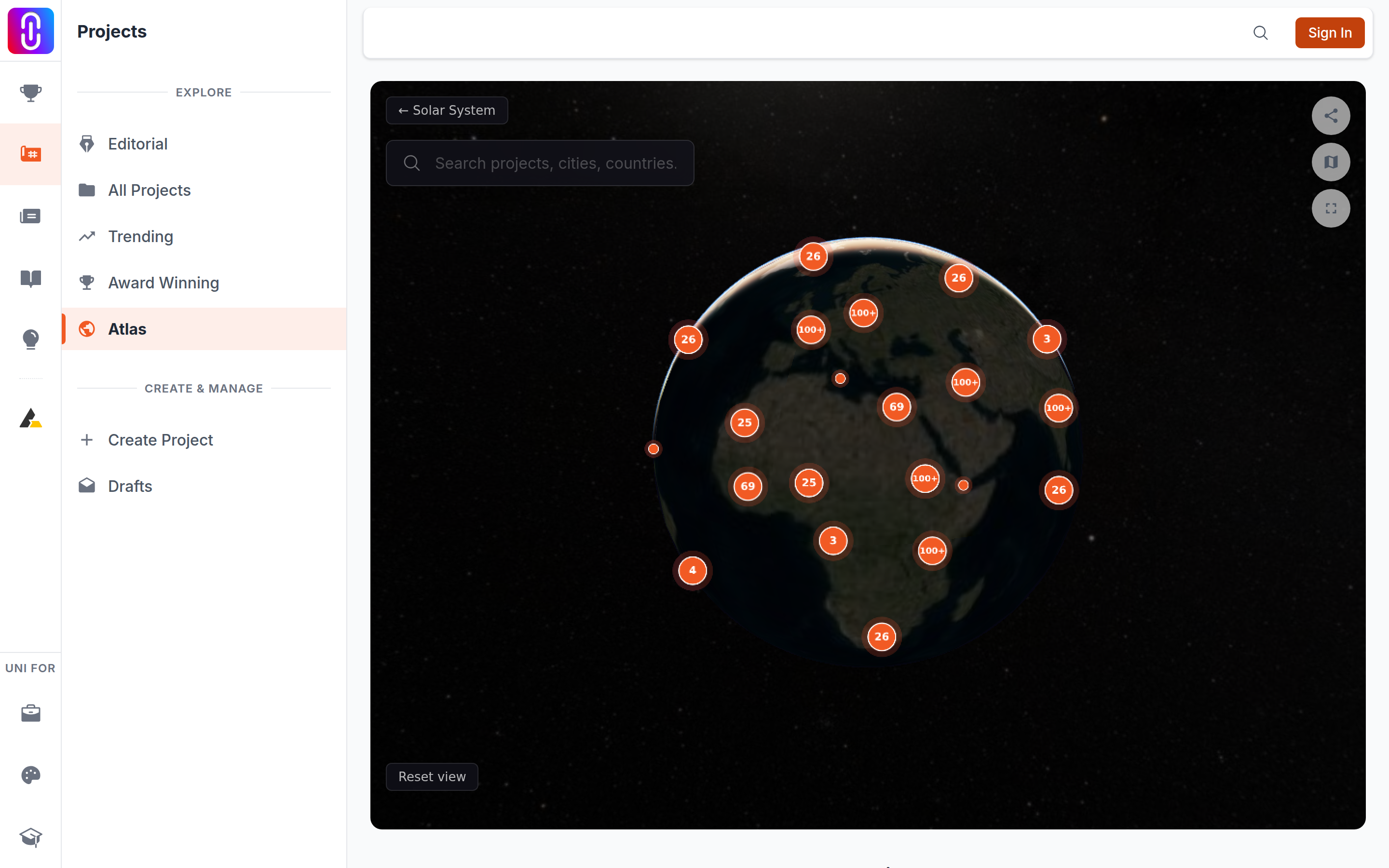
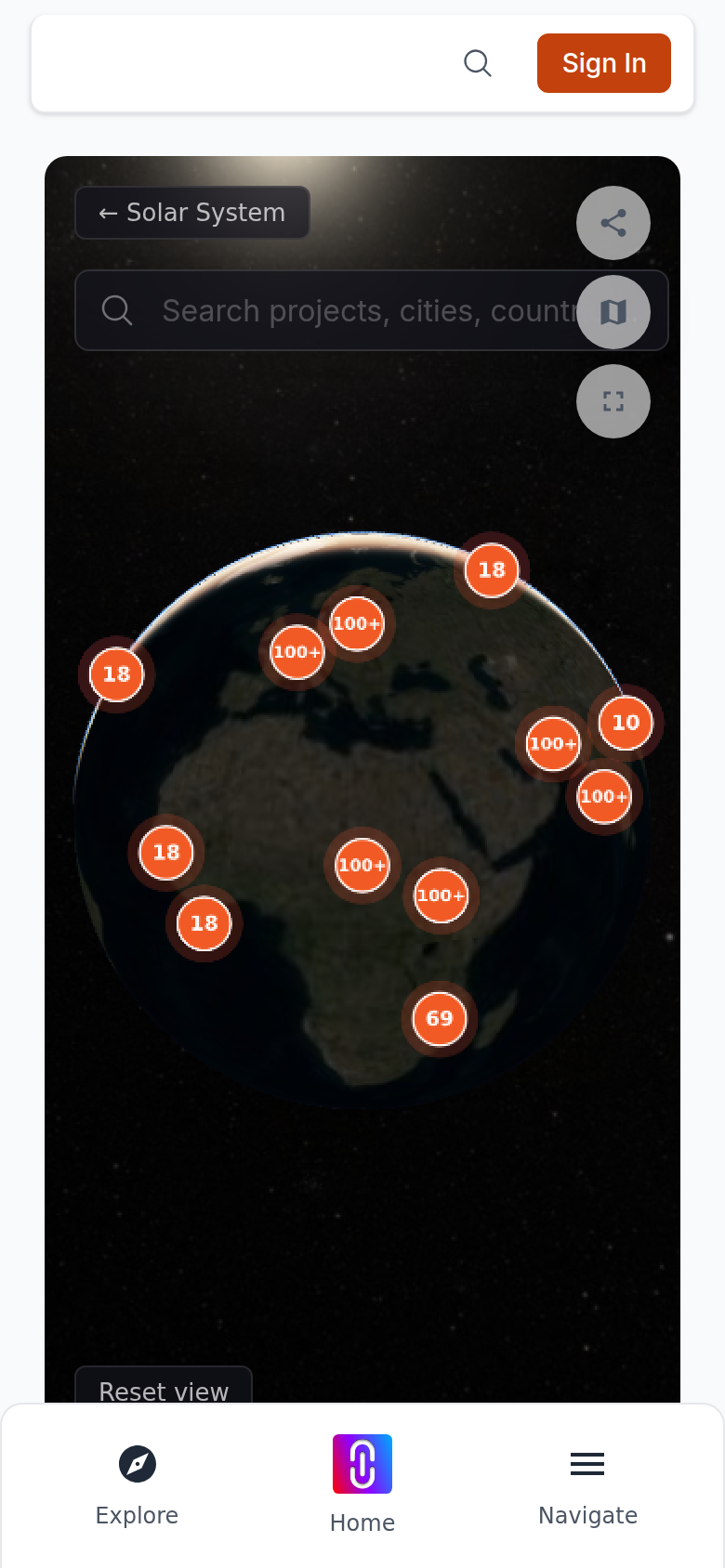
Selecting it hands the globe to the browser rather than doing something private to the page, and three things follow from that.
- Escape leaves full screen, wherever you clicked last.
- F11, and whatever else your browser uses, work too, and the button's icon follows along rather than falling out of step.
- Only the globe is enlarged. The navigation bars sit outside it and are hidden while you are in full screen.
Everything on the globe keeps working: the search box, the Solar System button, the map toggle, project cards and the reset control are all still there, laid out over the larger canvas.
If the button appears to do nothing
The page asks your browser for full screen and the browser decides. If yours refuses, which some mobile browsers do, the globe stays as it was and nothing is reported. Rotating a phone to landscape is the practical alternative.
The globe is worth the extra space
The pins are clustered by how far out you are zoomed, so a larger canvas separates places that overlap at a smaller size. If you are trying to pick one project out of a crowded city, full screen and then zooming in is the fastest way through.