The Atlas draws a pin for your project only when four things are true at once, and publishing on its own is not one of them. The Atlas page tells you a published project appears automatically, and that holds only once the project also carries a location with real coordinates behind it. Run the four checks below in order. Most missing projects fail the first one.
Before you start: a project that is not on the map is not a broken project. Location is an optional step. Without one your project still opens at its own address, still appears in search, in the discover feeds, on your profile and on any competition entry it belongs to. The Atlas is the only place a missing location shows up.
1. A location is saved on the project
Open your project's public page and look at the sidebar. If a Location card is there, a location is saved on the live version and you can move to check 3. If there is no card, none is saved, and this is by far the most common answer. About one in five published projects on UNI has no location on it.
To add one, open the project in the builder and select Location in the left sidebar. For a place on Earth, type the place into the search box and pick a result from the suggestions that drop down. Typing the name and leaving it there saves nothing, because the coordinates come from the result you select rather than from the text you typed.
If you set the location on Mars, the Moon or an orbit instead, your pin sits on that body's map. Each body is drawn separately, so it will never show on Earth.
2. You published after setting the location
Saving a location does not change your live page. It writes into a draft, in the same way that editing your title or your media does, and the Atlas reads published versions only. Press Publish again once the location is saved.
Run this check when the Location step in the builder looks complete but the project page shows no Location card. The builder is showing you your draft. The page is showing what is live.
3. The location has real coordinates
A small number of older locations carry the right place name with nothing behind it, and sit at 0, 0 in the Gulf of Guinea. The Atlas leaves those off on purpose rather than dropping a false pin in the ocean, so the project page can name your city while the map shows nothing.
Open the Location step in the builder and look at the map under the search box. If the marker is not on your place, either search for the place again and pick a result from the suggestions, or drag the marker onto the right spot. Both save the corrected coordinates. Publish afterwards.
4. The project is public
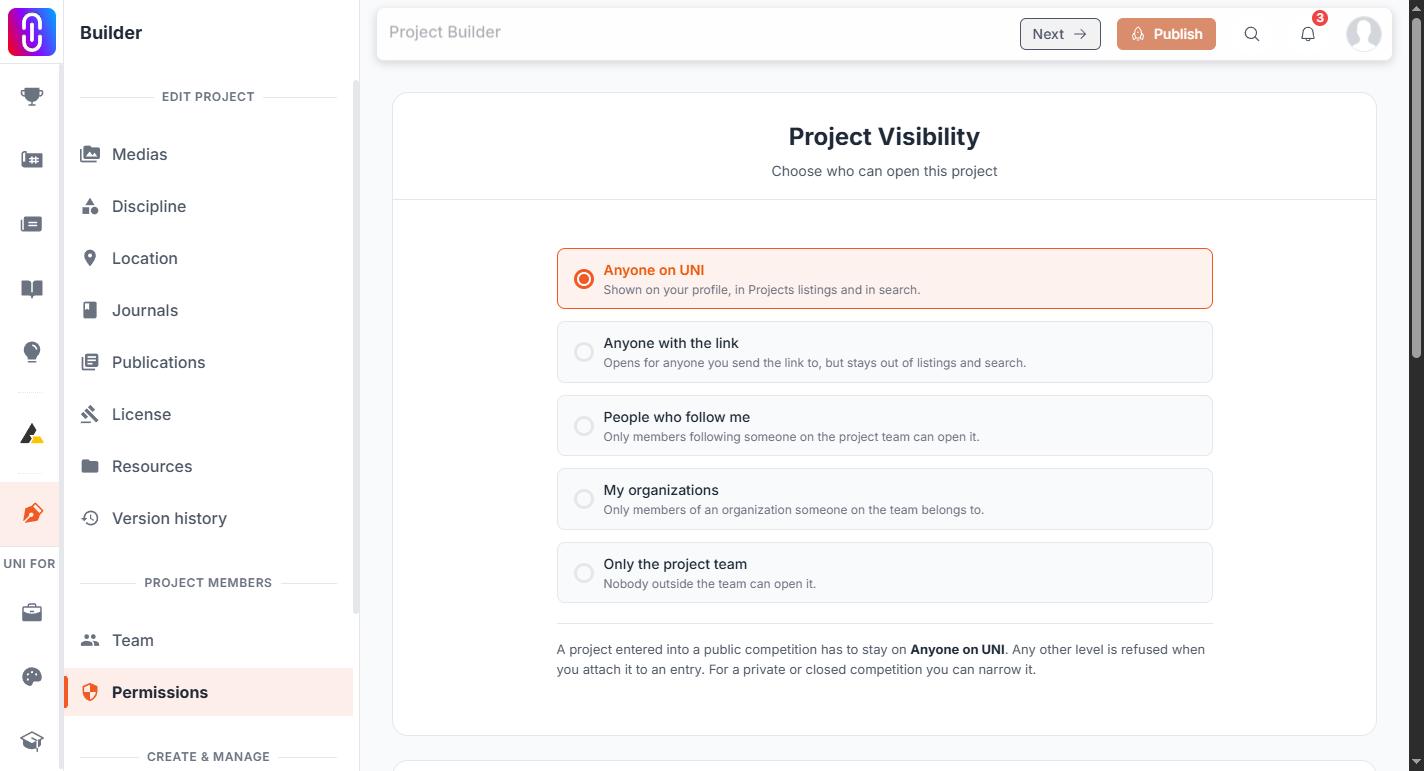
Private projects are left out of the Atlas, out of search and out of the public lists. If your project's page opens for someone who is not signed in, it is public. Visibility is yours to change: open the project in the builder, go to Settings, then Permissions. So a project can be private because you or a teammate set it that way, and checking that switch is quicker than asking. Changing a project's visibility covers the steps.
If all four are true, wait five minutes
The map's data is cached on our side for five minutes. A location you corrected a minute ago will not appear until that cache expires. There is a second cache in your browser that holds the map data for an hour. Because it lives in memory rather than on disk, a full page reload clears it, so reload the page rather than simply navigating back to the Atlas. Wait five minutes, then load the Atlas again.
If it is still missing after that, write to us with the project link and we will look at the record directly.