How to download a publication
- Open the publication page at uni.xyz/publications/its-slug.
- In the viewer toolbar under the document, use the download button. Its tooltip reads Download PDF.
- The print button sits in the top right corner of the viewer, next to Document Info.
- If the author allowed public downloads, a Download button also appears in the action row below the document, with the file size next to it.
The file saves as the original PDF the author uploaded.
Who is allowed to download
Any one of these is enough:
- The author, on their own publication, always.
- Anyone with an active UNI membership, on any publication.
- Everyone else, but only when the author ticked Allow public downloads on that publication.
If none of those apply, the download and print buttons stay on screen but their tooltip changes to UNI Membership required, and clicking shows a message instead of downloading. Membership plans are at uni.xyz/membership.
Turn on downloads for your own publication
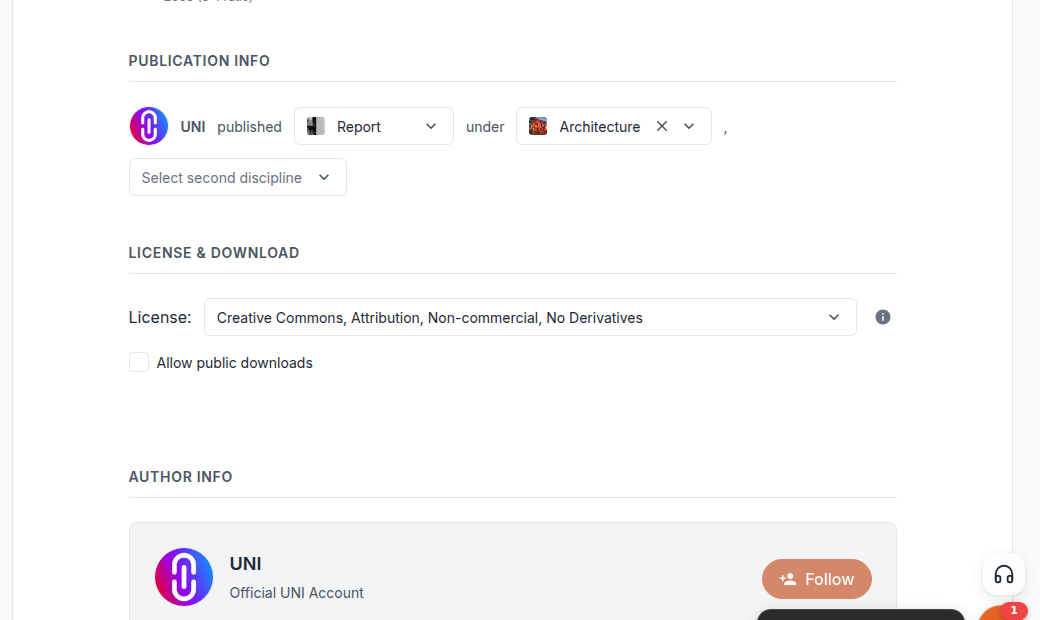
The checkbox on that screen saves normally. Tick or untick it and the change is written within a couple of seconds, in both directions. It is on by default, so a publication you have never touched allows public downloads.
This was broken until August 2026: the box appeared to tick and then reverted on reload, and the only way to change it was to ask the UNI team. That is no longer necessary.
For reference, the setting lives here:
- Open your publication in the editor and go to the Publishing Details step, at uni.xyz/publications/edit/its-uuid/meta.
- The Allow public downloads checkbox is the one that controls it.
- Save.
From then on anyone can download it, signed in or not, and the Download button appears in the action row for them.
Leaving it off does not hide the publication. People can still read the whole thing in the viewer on the page. It only restricts saving the file.
If you are the author and the download still fails
Being the author bypasses the membership check, so a failure here is usually one of these:
- The publication is not published. Only published publications are served. If you opened it in the editor recently, check its status: editing the first step of a published publication puts it back into draft, and it stays that way until you press Publish again.
- There is no PDF attached, or the file is not a PDF. The download serves the publication's own file and it has to be a PDF. If the upload never finished, or the file is another format, both the download and the in-page viewer will fail.
- The file is too large. The editor accepts PDFs up to 50 MB. An upload above that is refused rather than truncated, so the publication ends up with no file.
If none of those explain it, contact the UNI team so someone can check that specific publication.