The organization field is not free text. Experience, Education and Achievement each attach to a real organization page on UNI, so an entry whose organization was never matched does not save at all. Nothing is stored as typed words, and the entry does not appear on your profile in a lesser form: it fails.
Search harder before you create anything
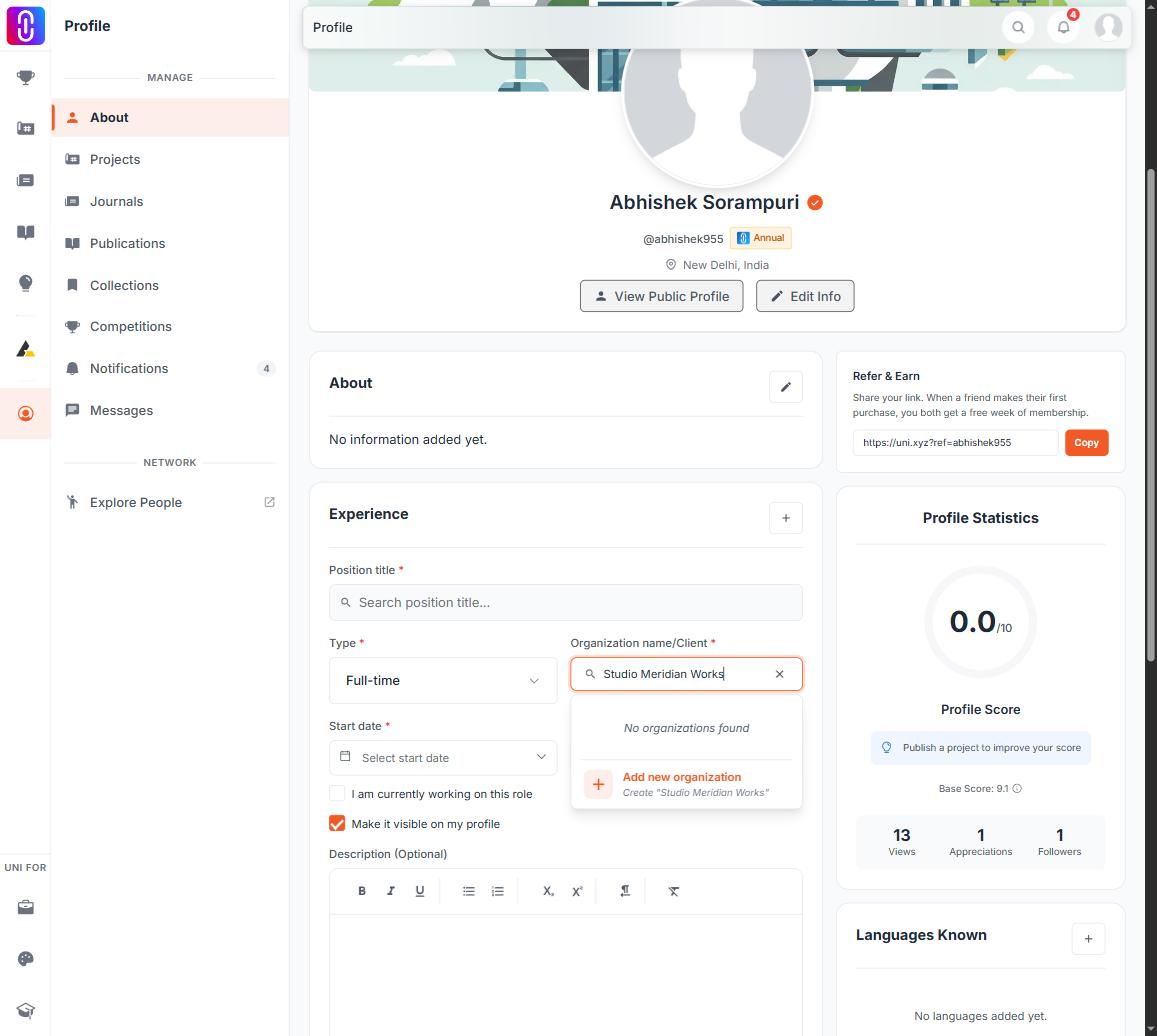
Typing two characters starts a search across every organization on UNI. Before deciding yours is missing, try:
- The short form and the long form. "MIT" and "Massachusetts Institute of Technology" are different strings, and only one of them may be the registered name.
- The name without University, College, School or Institute.
- The parent institution rather than the department, faculty or campus.
- The English spelling and the local one.
What the create option actually creates
If it genuinely is not there, the list offers to create it. That opens a form for a real, public organization page on UNI, and it asks for a logo, a name of at least 3 characters, a tagline between 3 and 160 characters, a website address and a location.
You become the owner of any organization you create. That is the part worth pausing on. If your university already exists under a name you did not find, creating a second page splits its members and its work across two entries that nobody can merge for you. Search first, and only create the page if you are willing to look after it.
What you see if you skip the step
The three cards fail in three different ways, and none of the messages says the real cause.
- Experience refuses before it sends anything, with "Organization is required".
- Education sends the entry without an institution, and the server rejects it. You get a general save failure.
- Achievement does the same with its issuer.
A save that fails for this reason keeps failing until an organization is chosen from the list. Changing the wording of the other fields will not clear it.
What matching properly gets you
An entry attached to a real organization carries that organization's logo, links through to its page, and puts your name on its public members page. See The public Members page.