Competition certificates on UNI are issued per entry, on demand. Nothing is emailed to tell you one has become available - you generate it yourself once your competition reaches the right stage. Once someone does generate it, though, the entry owner and every accepted team member get a "Certificate for [competition] is Ready" email, so a teammate does not need to also generate it just to know it exists. It then lives on a permanent public page you can download, verify, or embed.
The two certificate types
- Certificate of Merit is issued when your entry carries an award. Every award tier counts, from Winner and Runner-up through to Finalists and Shortlisted.
- Certificate of Participation is issued for an entry that finished without an award.
Which one you get follows the award your entry was given. It is not something you choose.
When a certificate becomes available
A rejected entry never earns a certificate, of either kind. This is a deliberate rule, not a delay: no future stage unlocks one.
For every other entry, availability depends on the stage the competition has reached:
- Your entry was approved and shortlisting is complete.
- Evaluation is complete, meaning results are finalised. This covers every non-rejected entry, whatever its review status.
These stages are marked complete by the competition, not on a fixed clock. So a certificate can be missing even though your entry is clearly accepted: the competition has not finished that phase yet. There is nothing to fix on your side and nothing to troubleshoot in your browser.
How to generate and download it
- Go to uni.xyz/profile/edit/{your-username}/competitions.
- Find the entry and use Analytics on its entry card. That opens the entry's dashboard.
- Use Download Certificate. If you have generated it before, the button reads View Certificate instead.
- In the Generate Certificate dialog, set the participant name. That is what gets printed, so check the spelling, and use Title Case.
- Generate. Your certificate page opens at uni.xyz/profile/certificate/{slug}/.
- On that page use Download, then choose Download PDF or Download PNG.
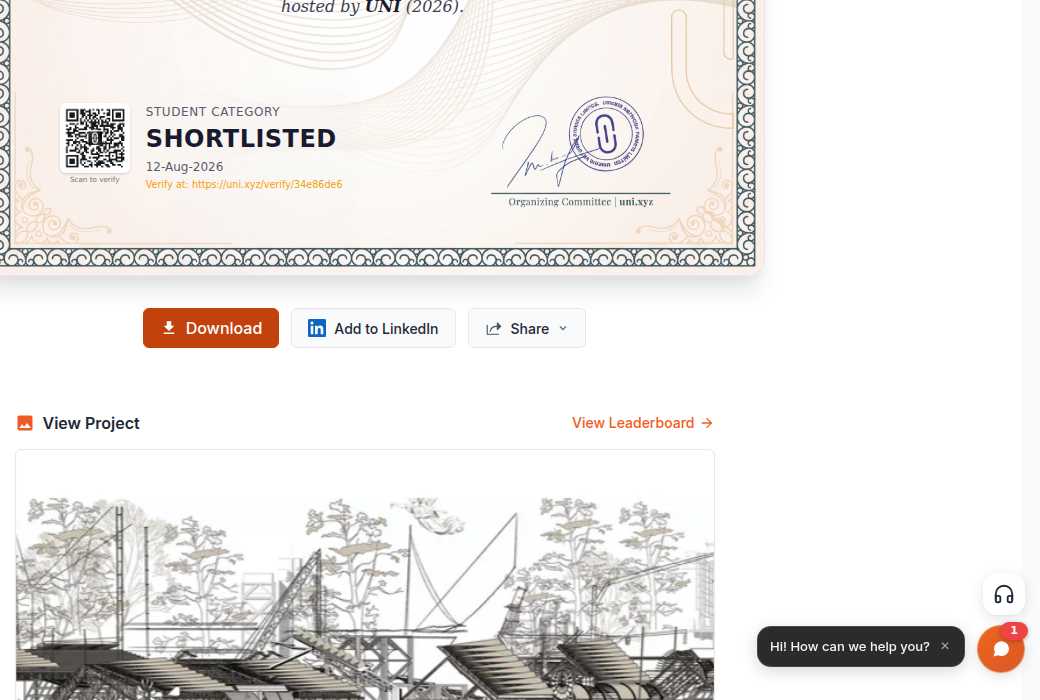
The certificate page also offers Add to LinkedIn.
The entry card also shows a Claim certificate button once one is available, and View certificate once you have generated it. Claiming from the card uses the participant name from your team automatically, with no dialog. If you want to set the name yourself, or correct it afterwards, use the Analytics page below instead.
Verification and sharing
Every certificate gets a short verification link and a QR code printed on the card, both pointing at the public certificate page, so a university or an employer can confirm it is genuine. Once generated, that page is public: anyone with the link can open it without signing in.
For a portfolio, use Copy Embed Code on the certificate page. The Embed Certificate dialog offers a few styles and copies the code for you.
If you cannot get your certificate
Work through the real causes in this order, not browser troubleshooting.
- The competition has not finished the relevant phase yet. This is the most common cause. Check the stage rules above.
- You have not generated it yet. Certificates are not created automatically. Thousands of eligible entries have no certificate simply because nobody pressed generate.
- Your connected project is unpublished. A project entry's certificate is built from the published version of that project. If it was never published or was unpublished, generating fails with a message asking you to publish it first. Publish it, then try again. This applies to project entries. Journal and publication entries have no publish check.
- The entry has no connected work. An entry with no project, journal, or publication attached cannot produce a certificate.
- You are not allowed to generate it for that entry. Generating is limited to the entry owner, accepted members of the connected project's team, and the author of a connected journal or publication.
The Download Certificate button appears as soon as the stage rules are met, so an unpublished project fails at the moment you generate rather than hiding the button.
You can also ask the UNI assistant in chat. It can check every one of your entries, tell you what stage each is at, and generate a certificate for you when it is available.
Name corrections
The participant name defaults to the names on the connected project's team. If it prints incorrectly you can fix it. Open the entry's Analytics page, use View Certificate, then Update Certificate. Both the participant name and the project title can be corrected this way.
The generate dialog warns that certificates cannot be modified once generated. That warning is about the certificate itself: there is one certificate per entry, it cannot be reissued, and its link never changes, so bookmark it. The printed name and project title can still be corrected afterwards, and a correction can take up to half an hour to appear on the public page.
If the stage has clearly passed and you still cannot generate, or you think you were given the wrong award, contact the UNI team with your competition name and entry so they can check it directly.
See also Cannot download your e-certificate and How to Download Your Certificate of Participation.