No. There is no Save button for the fields in the project editor, and there is nothing you need to press to keep your work. Your title and description are written two seconds after you stop typing, and everything else is written the moment you change it. The status chip at the top tells you where you are: Saving..., then Saved just now, then Draft.
The button that does matter is Publish. Saving and publishing are two different things, and the difference only starts to exist once a project has been published at least once.
On a project you have never published, none of this is public
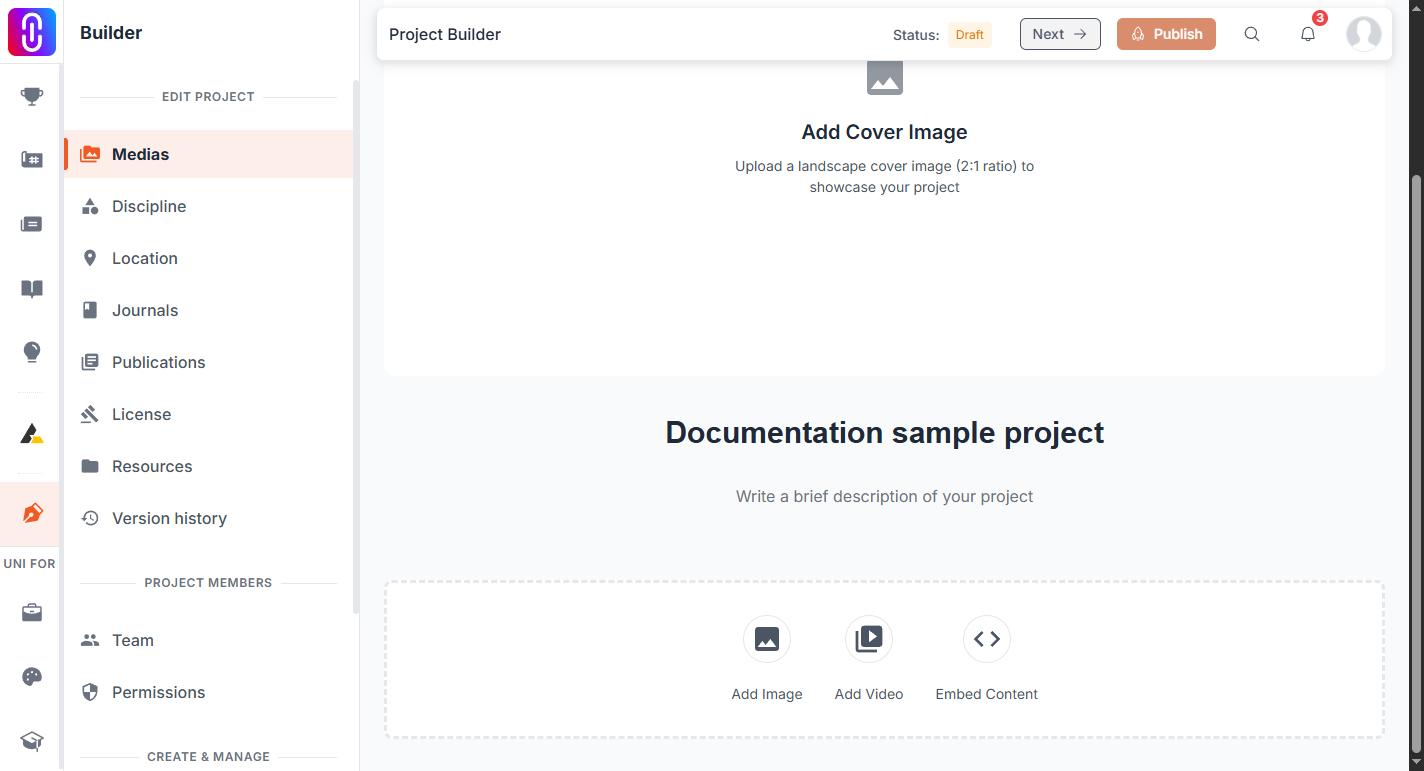
Until you press Publish for the first time, the project has no public page. Everything you write is a draft, and only you and your team can see it. Version history and project resources both begin at your first publish.
After the first publish, most edits wait for Publish
Once a project is live, editing it opens a draft, and the public page keeps showing the last version you published while you work. The title, the description, adding an image or a video, disciplines, setting a location, and linking a journal or a publication all land in that draft and stay there until you press Publish again.
Three changes go public without waiting for Publish
These do not wait for Publish, and there is no way to stage them:
- Deleting an image, a video or an embed. It leaves the live page at once, and it leaves every earlier version of the project as well. The confirmation dialog is the only step between you and that.
- Changing or removing the licence. The licence is held on the project itself rather than on a version, so it is never part of a draft.
- Clearing the location. Removing a location works the same way. Setting a new one goes into your draft as normal.
Reordering images is not one of them, despite feeling like it. Half a second after you drop an image the new order is saved, which reads as instant, but the save forks a draft like any other edit: a project you had already published drops back to Draft until you publish it again. It does not change your cover image either. That catches people who only meant to move a picture.
The rule to work by
Press Publish at the end of any editing session, including one where you only moved images around, because that is what makes your draft and your live page agree. Before you delete an image or change a licence on a live project, treat it as a public change, because it is one.
If something went out that you did not intend, you can restore an earlier version into your draft, check it and publish that.