Two different things go wrong with embeds and they need different fixes. If the embed will not save, what you pasted failed a check before it was stored. If it saved and the page shows an empty box, it was stored correctly and the provider is refusing to display it inside another site.
You can embed from these providers, and nothing else
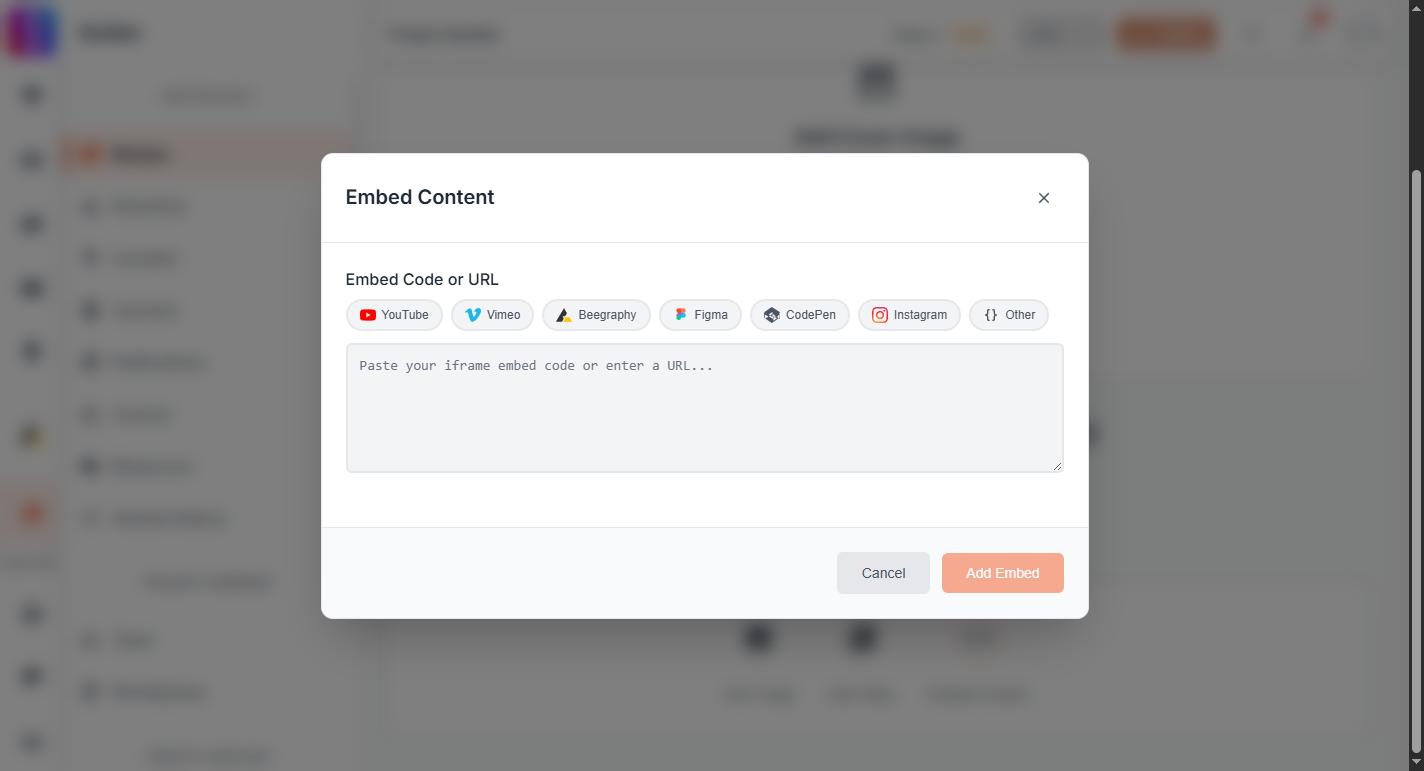
An embed has to be an <iframe>, and the address inside it has to belong to one of these:
YouTube (including youtu.be links and the no-cookie player), Vimeo, Bilibili, SoundCloud, Spotify, Beegraphy, Sketchfab, Figma, CodePen, Miro, Panoee, Behance, Dribbble, Instagram, Facebook, Twitter/X, Telegram (t.me), Giphy, Flickr, SlideShare, Issuu, Heyzine, FlipHTML5, Jumpshare, Adobe Express, Google Docs, Google Maps, Design Educates, and UNI itself.
Subdomains of those count, so player.vimeo.com, open.spotify.com, e.issuu.com and tour.panoee.net all pass. Anything else is refused however ordinary it looks: a personal portfolio domain, a university website, a file host. If the provider you need is missing, write to support.
The builder does not tell you which rule you broke
When a save fails, the builder shows Failed to embed content whichever rule stopped it. There are five, each with its own message behind the scenes:
- The box was empty:
embed_code cannot be blank. - There is no iframe in what you pasted:
Embed code must contain an <iframe>. Paste the embed code from the provider's share dialog, not the page URL. - The code carries scripts, forms, input fields or event handlers:
Embed code contains disallowed content. Only iframe embeds from trusted sources (YouTube, Vimeo, Spotify, etc.) are allowed. - It points at Google Drive:
Google Drive embeds are not supported. - It points anywhere else off the list:
Iframe source 'example.com' is not in the list of trusted embed providers. Allowed sources include YouTube, Vimeo, Spotify, SoundCloud, Figma, etc.
A <script> tag sitting next to the iframe is not a rejection. Vimeo's share dialog and Panoee tours both produce one, and it is removed while the iframe is kept.
Google Drive is blocked, and a Drive link is not the workaround
Drive files are almost always permission-gated, so your reader sees an empty frame even when it looks fine to you. Upload images and video straight into the project instead, publish a document as a publication, and put a 3D model on Sketchfab or Beegraphy.
An empty box means it saved and the provider refused it
UNI takes the address out of your iframe and loads that address on the page. The embed window also accepts a plain link and wraps it in an iframe for you, which is why a link can save without complaint and still come back empty. Three things cause it.
- The address is an ordinary page rather than an embed address. Most providers only allow framing on their dedicated embed or player address. Use the code from the provider's Share or Embed option, not the address in your browser bar.
- The content is not public. Anything private, restricted, unlisted or behind a sign-in is blank for everyone except you, and you will not notice while you are signed in to that provider.
- It was deleted, moved or made private at the provider after you added it.
Check your project the way a visitor sees it
Open your published project in a private or logged-out window and scroll past every embed. A working one shows the content or the provider's play button. A broken one shows an empty frame, a grey box, a refusal to connect, or the provider's own error. Check after you publish, and again whenever you change something at the provider, because nothing on UNI notices when a video is taken down elsewhere.
Re-add anything that has gone blank
Editing the code on an embed you already added does not work. Remove it and add it again:
- Open the original provider and copy its current embed code from the Share or Embed option.
- Delete the blank embed from your project.
- Add it again, save, and publish.
- Check the live page in a private window.