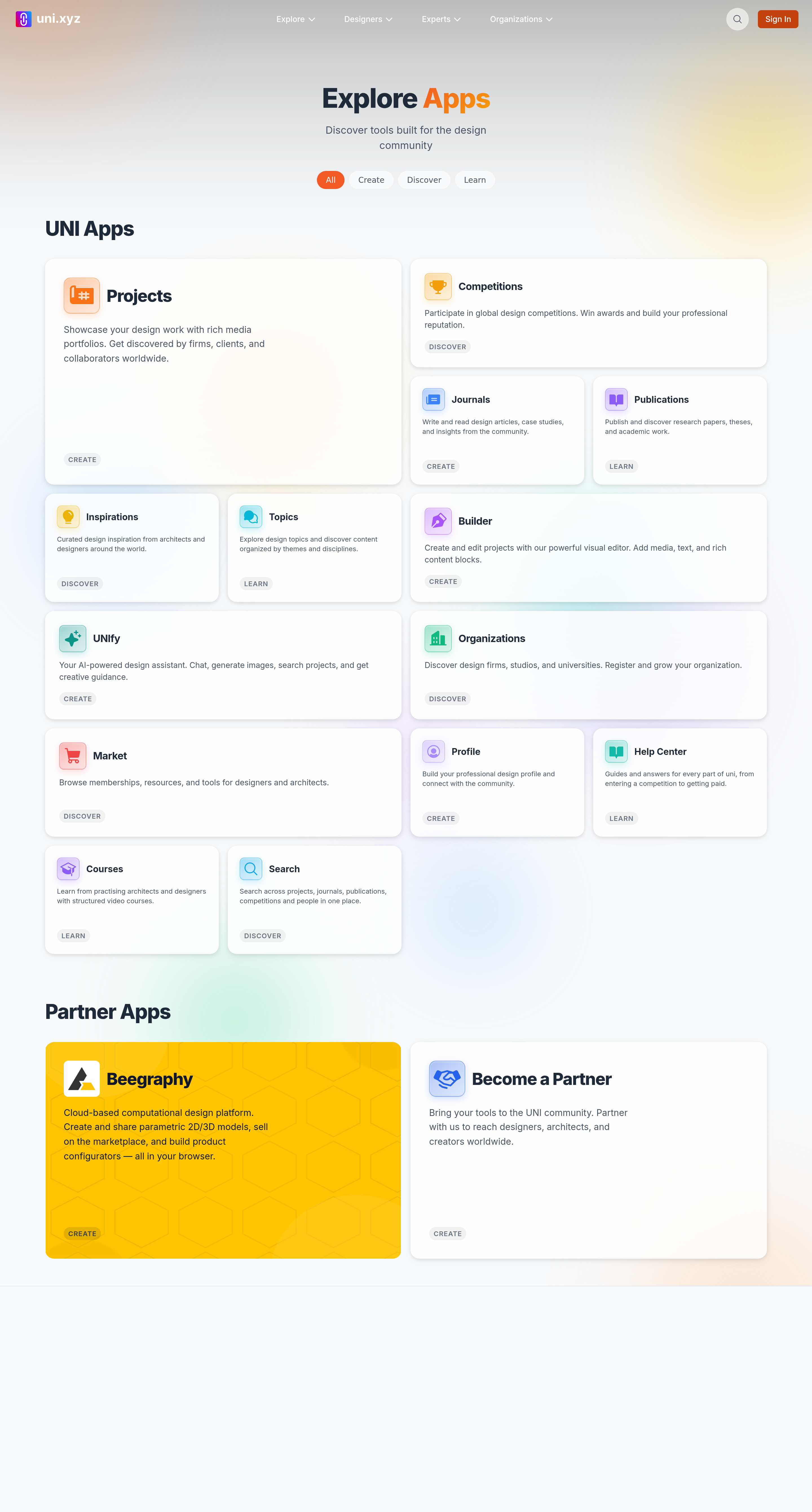
The pin button on each card at uni.xyz/explore adds that app to the icon sidebar you see on every page, so you can reach it without coming back here. Two rules are not stated anywhere on the page, and they are the reason a pin sometimes does not take.
- You have to be signed in. Signed out, the button answers with "Log in to pin apps to your sidebar" and nothing is saved.
- You can hold five pins. The sixth gives "Maximum 5 pins reached. Remove a pin first". Unpin something and the slot is free again.
Your pins live on your account, not on this browser
Pins are saved against your account, so they follow you to a different browser, a different computer and your phone. Signing out empties the sidebar for that session and signing back in restores it. Clearing your browser data does not lose them.
To remove one, press the pin on the same card again. It turns hollow and the app leaves the sidebar straight away.
Unify cannot be pinned
Unify appears on the explore page with a pin button like every other card, but it is not one of the apps the sidebar accepts. Pressing it returns "Failed to pin app" every time. That is a defect on our side rather than anything you did, and there is no way around it from the page. Reach Unify from its own link until it is fixed.
Beegraphy is worth a note in the other direction: it already sits in everyone's sidebar as a promoted app, so pinning it uses one of your five slots without adding anything new.
The category chips filter, they do not search
The chips across the top are All, Create, Discover and Learn, and each card carries exactly one of those three categories. There is no search on this page and no way to combine chips.
A category with nothing in it removes its whole section rather than saying so. The Partner Apps heading disappears entirely under Discover and Learn, because every partner card is filed under Create. Nothing has broken and nothing has been unlisted. Select All to bring the section back.
What the directory is for
Explore is the full list of what UNI runs, including the parts that do not appear in the main navigation. Partner apps are listed alongside our own and open in a new tab, since they are run by other companies rather than by us.
The page is linked as All Apps in the footer of every page, which is the quickest way back to it.