Under Institutional Access the mentor holds the entries, the students build the work, and the mentor attaches finished projects to those entries. Here is the order to do it in.
1. Register the entries
Register on the competition using the Institutional Access category. Registering creates the entries. It does not create any project work, which comes next.
Registration steps are in Registering with Institutional Access.
2. Decide how the class splits into teams
Institutional Access does not fix your team sizes. Students can work solo, in pairs, or in teams up to whatever the competition allows, and one student can be on more than one team. Check the competition brief for the maximum team size before you split the class.
3. Students create and publish their projects
Each student builds their own project from their own account.
- Sign in, open your profile and go to Projects.
- Choose Create Project. That opens the project builder.
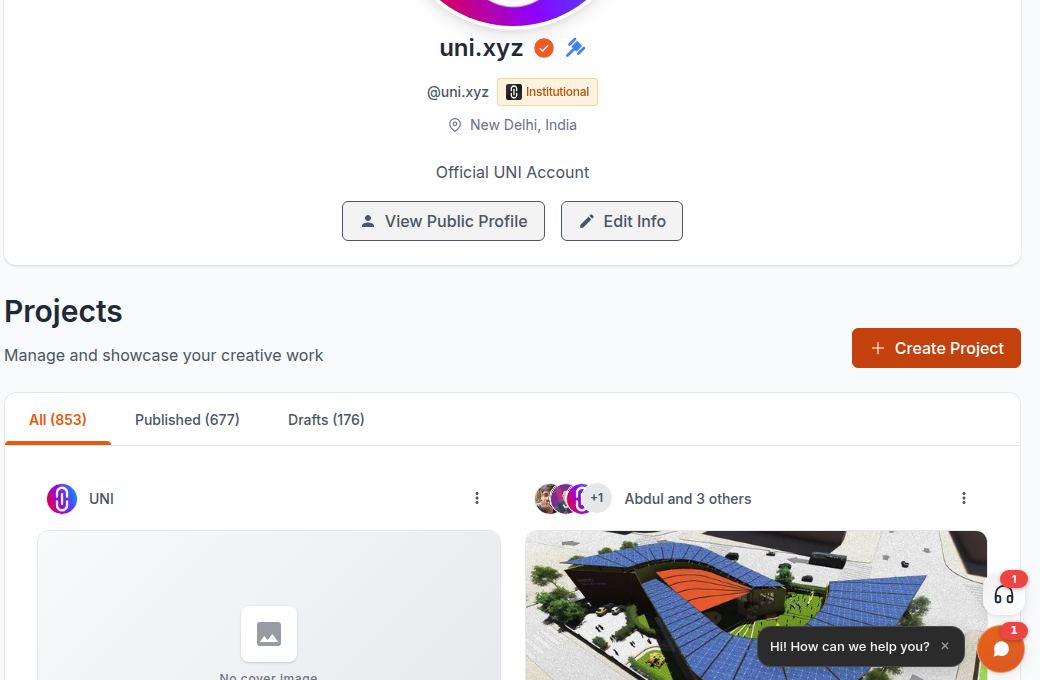 3. Add the drawings, images, text and other media, then publish the project.
Only published work can be attached to a competition entry, so the project has to be published before the mentor can submit it.
Full walkthrough: How to upload your project on UNI
4. Add the mentor and teammates to the project
Team members are added from inside the project builder.
- Open the project in the builder and go to Team Management.
- Choose Add Team Member and search for the person.
- Set their Roles and their Project Permission, then save.
Add the mentor to every project that is going to be submitted. The mentor has to be on the team to review the work, and being on the team also stops the mentor from scoring that project, which keeps the evaluation clean.
Full walkthrough: How to invite team members to your project
5. The mentor attaches each project to an entry
Submission happens from the mentor's profile, not from the competition page.
- Go to your profile and open Competitions.
- Find the entry you want to fill and choose Submit.
- Pick the published project and confirm.
If the wrong project went in, choose Detach work on the entry and attach the right one. Both controls disappear once the submission deadline passes, so leave the mentor time to review.
Full walkthrough: Guide to submitting your project in a UNI competition entry
If your institution has an organisation page
An organisation registered on UNI as an institution gets an extra Institutional section in its manage area, with Dashboard, Classrooms, Assign Competitions and Review Entries. Faculty use it to group students into classrooms and point a classroom at a competition. Entries bought through an Institutional Access category are still created and submitted through the steps above.
Deadlines
Work backwards from the submission deadline in the brief and set your own internal publishing deadline earlier than it. Students often leave a project in draft, and a draft cannot be submitted.