"Session expired. Please try again." is a page timer running out. Nothing was charged, nothing was cancelled, and your order still exists. The checkout page starts a two-minute countdown the moment it loads, and when the countdown reaches zero it shows that message and returns you to your cart three seconds later. The cart looks empty when you land there, because pressing Proceed to Checkout moved your items out of the cart and into a separate order of their own.
The countdown is a page timer, not a payment deadline
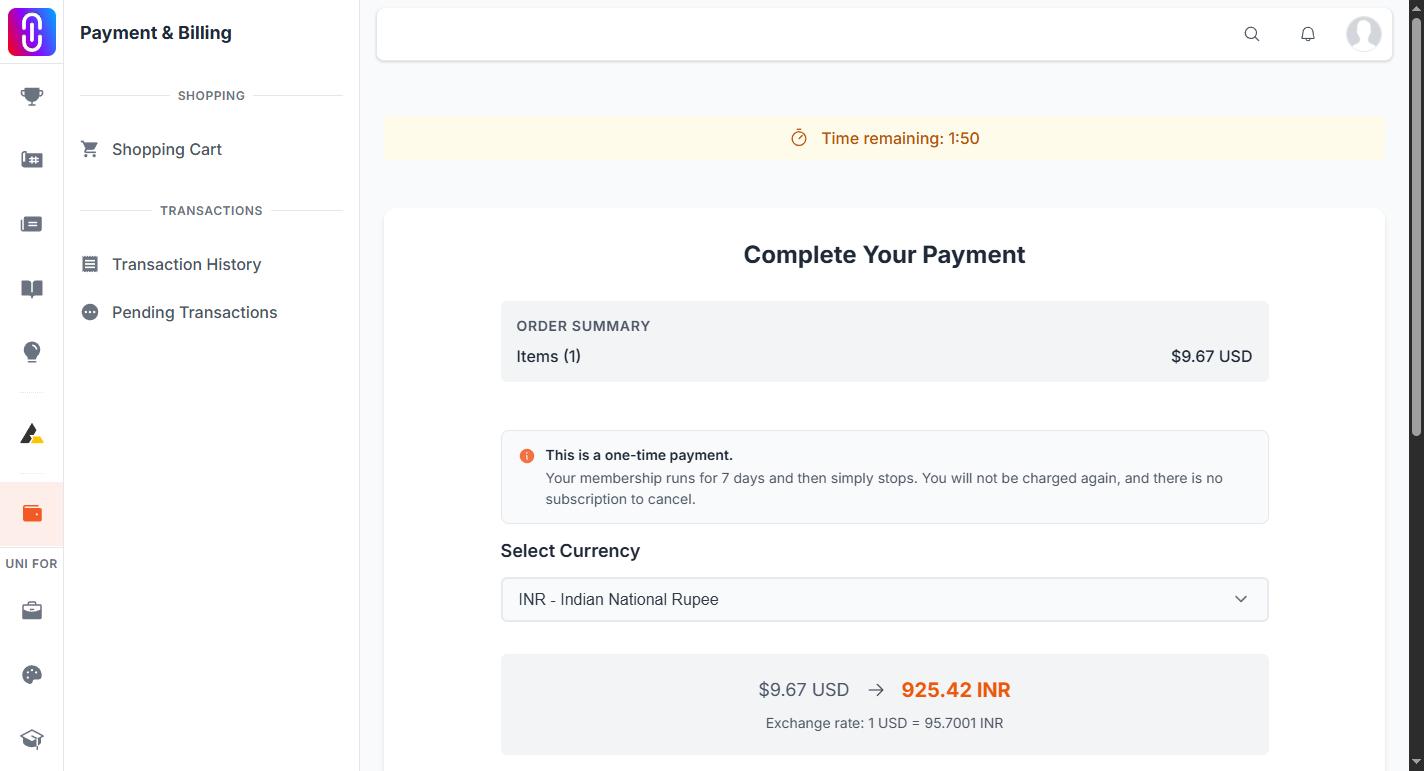
Nothing on UNI's side expires after two minutes. The order created when you pressed Proceed to Checkout is a saved record with no expiry on it, and it stays payable. If it sits unpaid, UNI emails you a link straight back to it an hour later, and again a day later.
So the two minutes apply to that one page load and nothing else. Opening the checkout page again starts a fresh two minutes.
How to get back to your order
- Open Transaction History at uni.xyz/payment/transaction/history. Every checkout you have started is listed there by date, with the items on it and the amount.
- Select the order you were paying for. An order that was never paid is marked Failed, because no payment was recorded against it. That is a label about the payment, not about the order, and the items are intact.
- Select Try Again. That puts you back on the same checkout page with the same items and the same amount, and a new two-minute countdown.
If you have the "Complete your checkout" email from UNI, the link in it goes to the same page.
Have your payment method ready before you press Proceed to Checkout
Two minutes is less time than it sounds, for two reasons.
The countdown starts when the checkout page loads, not when you start entering card details. Choosing your currency and reading the billing note both happen on the clock.
And if you pay by card through Razorpay, the payment window opens on top of the checkout page rather than taking you off it, so the countdown carries on behind that window while you wait for your bank's one-time password. A code that takes ninety seconds to arrive leaves you very little. PayPal behaves differently: it moves you off the page entirely, so the countdown is no longer running.
Before you press Proceed to Checkout, have the card or your PayPal login open, and the phone that receives your bank's code within reach.
If your bank's payment window was open, check before paying again
The timer running out does not cancel a payment that is already in progress. If your bank's window was open when the session expired and you completed the payment there, that payment is still recorded against your order.
Open Transaction History and check that order before you start a new one. If it shows as successful, you are done and there is nothing to repeat. If you cannot tell whether a charge went through, send support the transaction ID from that page rather than paying a second time.
Related
- Accepted payment methods and currency
- Payment receipts and transaction history
- Refunds and cancellations
Your cart looks empty as well
That is expected, and it is not a second problem. Starting checkout moves your items out of the cart and into the order, so the cart is empty from that moment on whether or not you finish paying. Your cart emptied when you started checkout shows where the items went.