No. Changing the tab empties the boxes on the screen, and that is all it does. Nothing saved on the project is touched by switching tabs. Switching back does not restore what you had typed into the form and not yet saved, but it does not need to restore anything that was already saved, because that was never removed.
There are two different things on that page and they behave differently. The form is scratch space. The location card is the project.
Why Mars, Moon and Orbit look empty
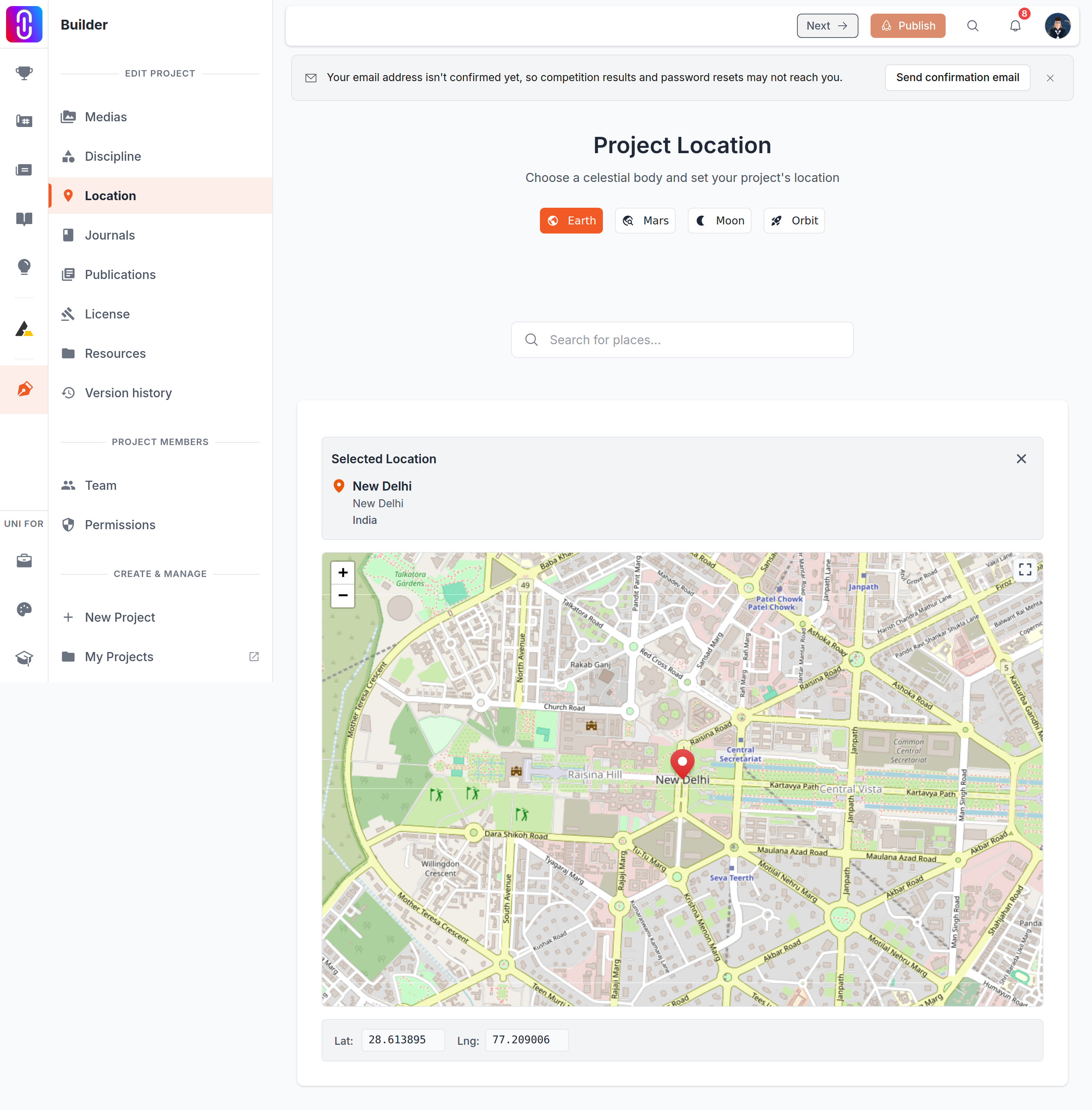
Only the Earth tab shows you the location currently saved on the project. The Mars, Moon and Orbit tabs show a blank form and nothing else, whether or not the project already has a location on that body.
This catches people out on a project that is already placed off Earth. You open the Location step, the tab has correctly jumped to Mars because that is where the project is, and you are looking at three empty boxes. It reads as though the location was lost. It was not. Switch to the Earth tab and the saved location appears on the card there, named and described, whichever body it actually belongs to.
Removing a location
The X on that card is the only control that removes a location. There is no confirmation step and no undo. It reports Location removed successfully! and the location is gone.
On a published project that removal is public straight away. It does not wait for you to press Publish, unlike setting a new location, which does. What the project editor saves on its own sets out which changes wait and which do not.
A project holds one location
There is no list to manage. Saving a new location replaces whatever was there, on any body, so moving a project from Mars to Earth is a matter of setting the Earth one rather than clearing the Mars one first.