
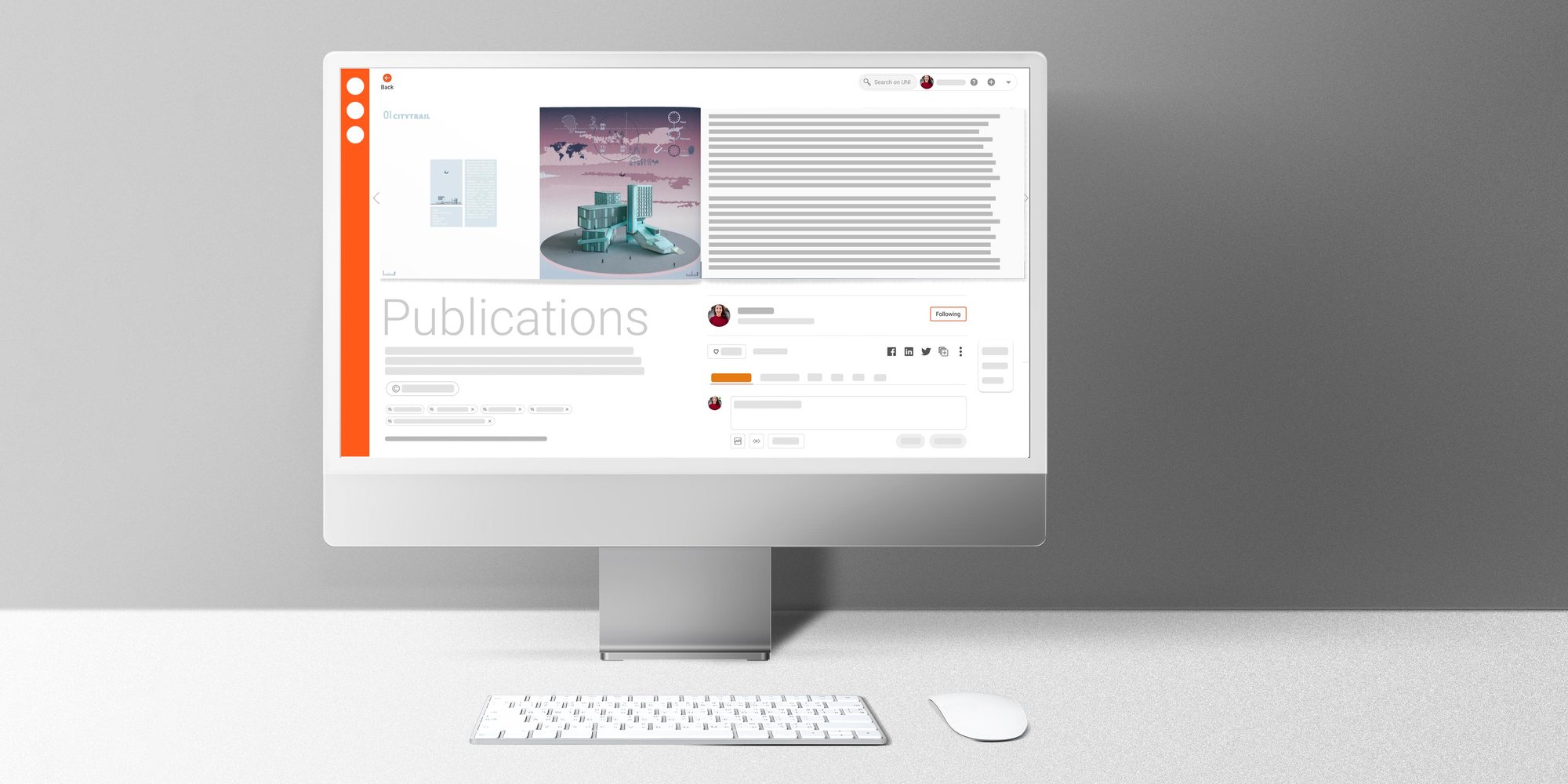
Unlock the Full Potential of Your Design Practice with UNI's Publication Feature
Upload your articles, dissertations, reports, design guidelines for a project, and much more.

Let's be honest—design is not merely about eye-catching visuals. It's an intricate tapestry woven with research, budgets, and frameworks that often go unnoticed. However, these critical elements rarely find a home alongside a designer's portfolio. Here's where the UNI's Publication feature steps in, providing a dedicated space for all those under-the-radar aspects that truly elevate your work.
Why Use UNI's Publication Feature? The Benefits Unveiled
When you upload your publications to UNI, you're not just adding files; you're enriching your profile. These documents co-exist harmoniously alongside your projects and bio. Plus, our flipbook-style PDF viewer enhances user experience, making your content not just readable but engaging.
Step-by-Step Guide: Uploading Your Publications
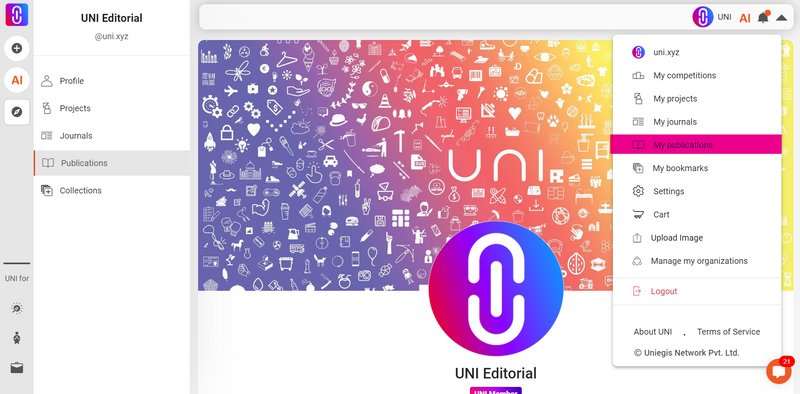
1. Navigate to the Publication Tab:
- Locate the 'Publications' tab on your profile. You'll spot an 'Upload a new publication' button marked with a '+' symbol.
- Pro Tip: Alternatively, click the 'v' next to your username and avatar in the top-right corner. Select 'Publication' from the dropdown.
- Remember to switch to self view (if it's not) in your profile to see the upload options.
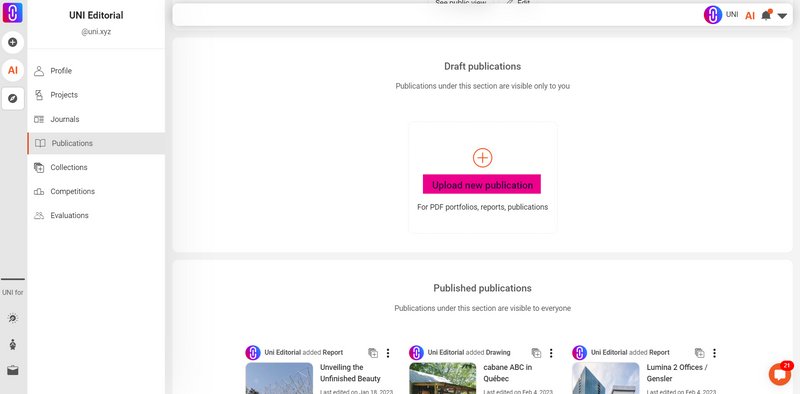
2. Choose Your File:
- On the new page, upload your PDF from your device. A progress bar will indicate the upload status. Hold tight until it reaches 100%.
3. Title & Description:
- Name your publication. Go for an official or neutral tone, similar to academic papers or books.
- Briefly describe the content, add the creation date, and proceed by clicking 'Next'.
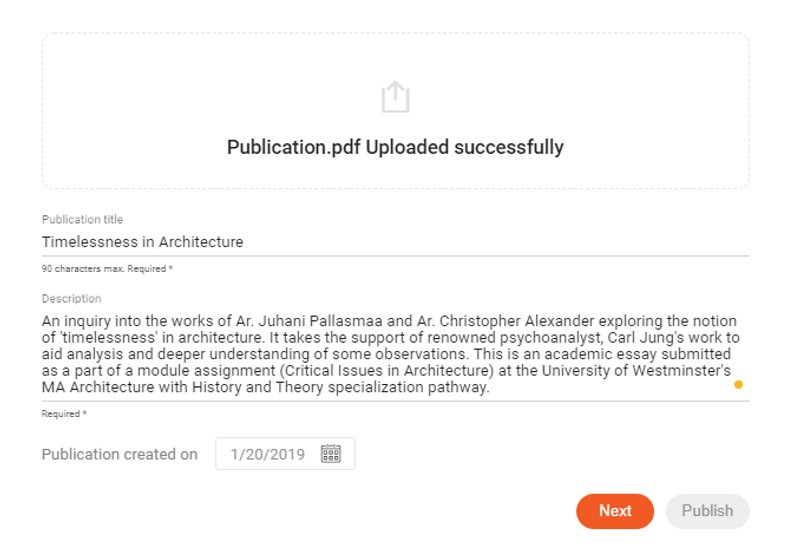
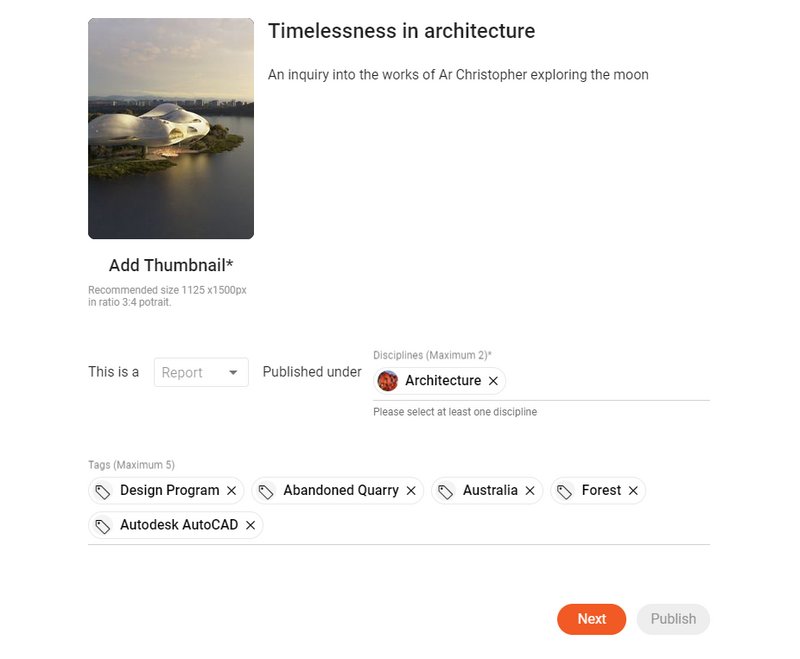
4. Cover Image & Metadata:
- Upload a portrait-oriented cover image; this complements UNI's thumbnail layout.
- Choose the disciplines and tags relevant to your publication.
5. Licensing & Publishing:
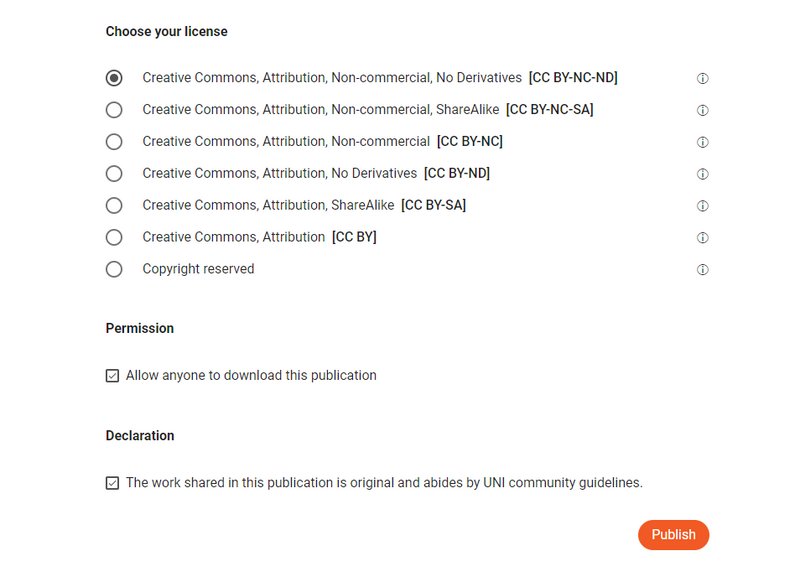
- Choose the appropriate licensing option and check the declaration box.
- Once you're set, hit the now-active 'Publish' button. And voilà, you're live!
Bonus Step: Integrating Your Publication with Existing Projects
After you've successfully uploaded your publication, why not take it a step further by linking it to an existing project? This not only adds depth to your projects but also enhances the multi-dimensionality of your portfolio on UNI.
6. Associate with a Project:
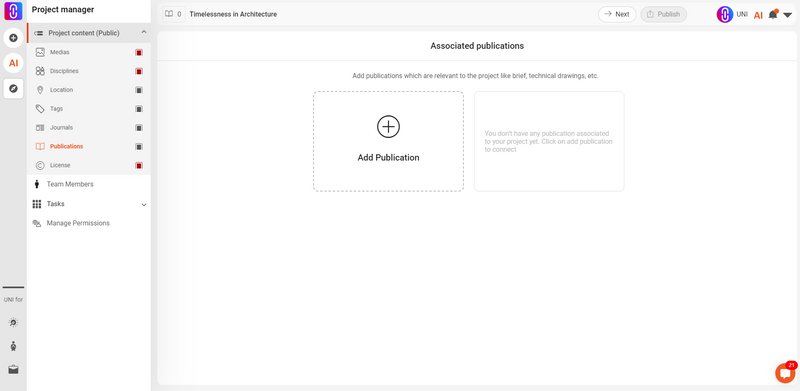
- Navigate to your desired project in the Project Manager (Learn how to use the Project Manager).
- Locate the 'Publication' tab and here you will find an option to 'Add an associated publication'.
- Choose from your list of existing published content to link it with the project.
By integrating publications into your projects, you create a comprehensive ecosystem where your ideas, research, and design solutions live together, making your portfolio richer and more robust.
This inclusion creates a holistic view of your capabilities, allowing visitors to your UNI profile to grasp not just your design acumen but also the intellectual rigor that backs it.
What Can You Publish? The Sky's the Limit
From competition-related documents to academic papers, the publications feature has you covered. If you've crafted brochures, whitepapers, or even traditional portfolios, they all belong here. Whether you're an educator, a researcher, or a design journalist, you can bring all facets of your professional identity under one unified UNI umbrella.
A Special Note on Image and Drawing Quality
Worried about compromising the quality of your high-resolution drawings or images? With UNI's Publication feature, you don't have to be. When you upload a publication, the image and drawing quality remain intact—they are not optimized or reduced in any way.
Pro Tip:
If you're keen on showcasing intricate, high-quality drawings, consider uploading them in your publications along with, or even instead of, including them in the project section. This ensures that the finer details of your work are presented in all their glory, uncompromised.
This way, you're providing a valuable tip to users who are particularly concerned about maintaining the high quality of their images and drawings.
Unleash the Possibilities
Your work is multi-dimensional; shouldn't your online presence be the same? Dive in and discover the unexplored avenues of what you can do with UNI's Publication feature.



Popular Articles
Popular articles from the community


Solar Steam: A Climate-Responsive Architecture That Redefines the Monument
A climate-responsive memorial architecture that transforms heat, decay, and time into a living system reflecting humanity’s ecological impact.
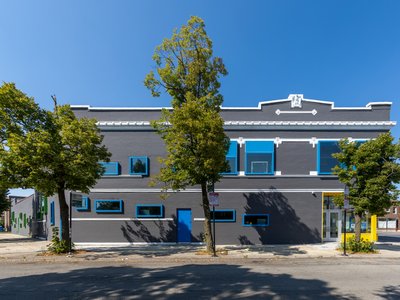
Gads Hill Early Learning Center by JGMA: Adaptive Reuse Shaping Community-Focused Educational Architecture
Adaptive reuse transforms fragmented structure into vibrant early learning center with playful façade, natural light, and community-focused sustainable design.
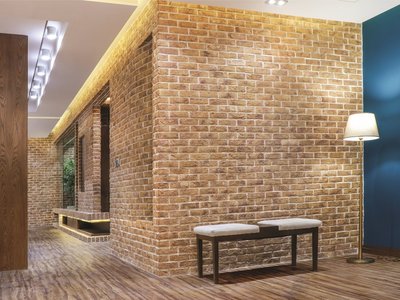
A Contemporary Take on Iranian Residential Architecture
A modern interior design in Mashhad that reinterprets brick, light, and spatial flow to create a warm, contemporary residential architecture.
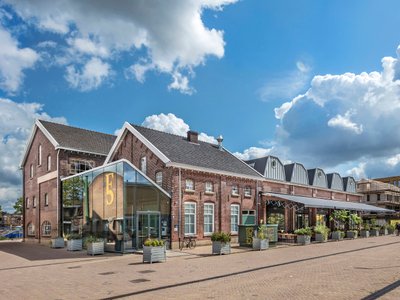
Fifth NRE Jazz Club – De Bever Architecten: Eindhoven’s Revitalized Cultural Hub
Historic gas factory transformed into Fifth NRE Jazz Club blending modern sustainability, jazz culture, dining, and heritage architecture seamlessly.

Similar Reads
You might also enjoy these articles
Fifth NRE Jazz Club – De Bever Architecten: Eindhoven’s Revitalized Cultural Hub
Historic gas factory transformed into Fifth NRE Jazz Club blending modern sustainability, jazz culture, dining, and heritage architecture seamlessly.
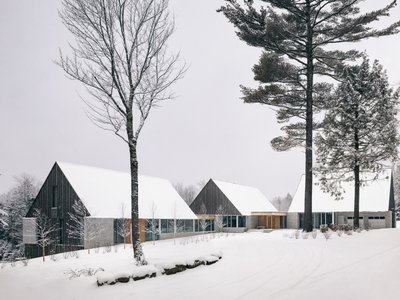
Three Summits Residence by NÓS: A Multigenerational Mountain Retreat Rooted in Landscape and Architectural Primitivism
Multigenerational mountain residence in Vermont featuring three pavilions, granite bases, dramatic roofs, and seamless integration with forested landscape.
Gads Hill Early Learning Center by JGMA: Adaptive Reuse Shaping Community-Focused Educational Architecture
Adaptive reuse transforms fragmented structure into vibrant early learning center with playful façade, natural light, and community-focused sustainable design.
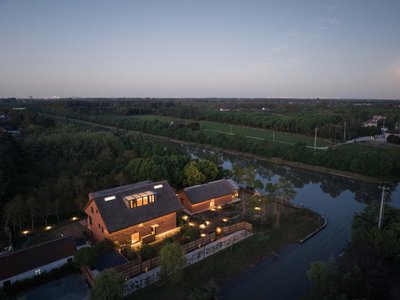
SOM LAND Hotel by RooMoo: A Sustainable Retreat Rooted in Nature and Local Craft
Sustainable boutique hotel in Shanghai blending adaptive reuse, natural materials, vernacular craftsmanship, and slow living within a serene countryside landscape.





Comments (0)
Please login or sign up to add comments
No comments yet. Be the first to comment!